TV Daily Menu Setup Guide
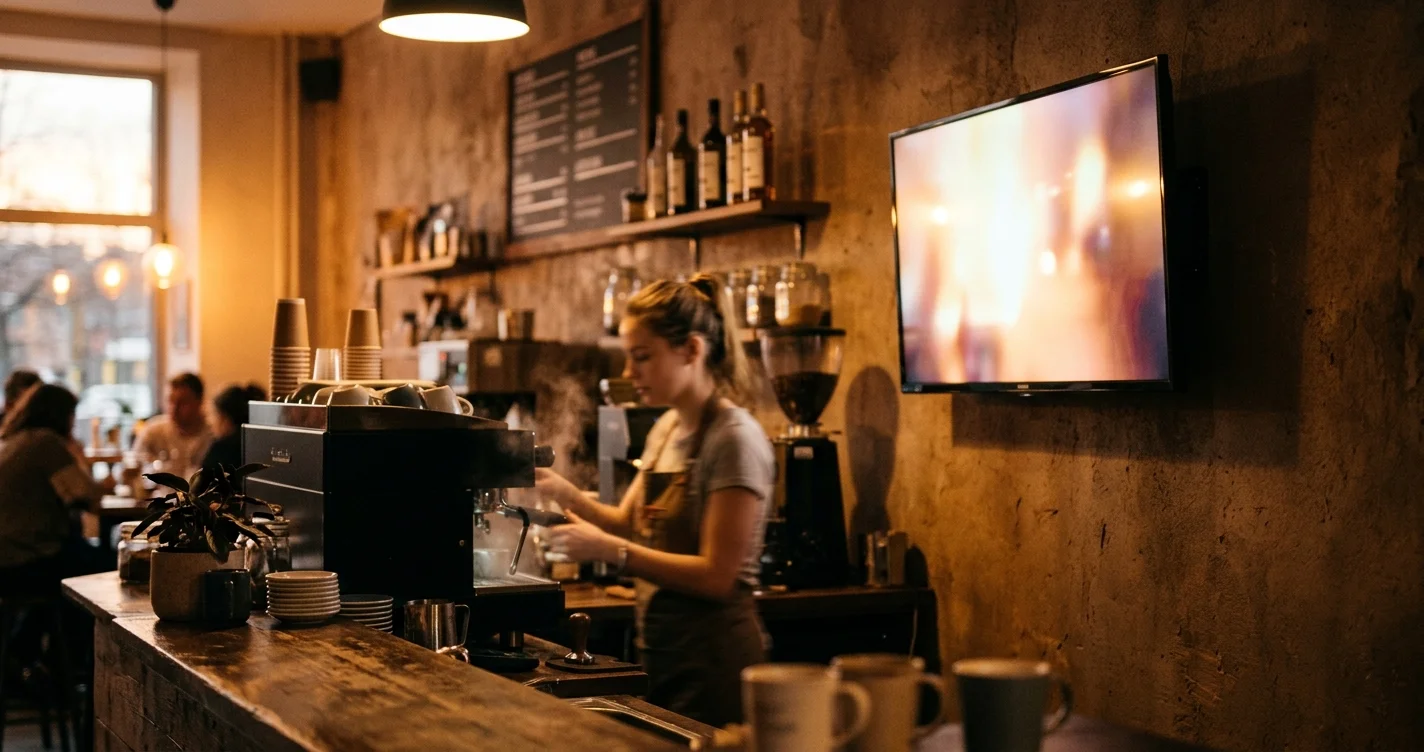
A TV showing your menu is one web page left open on a screen. That is genuinely all it is, and once you see it that way the setup stops being a project. This is what MenuMog does behind that page, what it updates on its own, and — the part most setup guides skip — what it cannot do, so you can find out now rather than at 7am on a Tuesday.
The one URL everything hangs off
Every menu you build in MenuMog has a public view address that looks like menumog.com/view/abc123. Open it on anything with a browser and you get your menu, laid out for a screen.
That address is the whole system. There is nothing to install, nothing to pair, and no separate "TV app" — a smart TV's own browser, a laptop or mini PC on an HDMI cable, or a Chromecast casting a tab all reach the same page. The TV setup guide walks through the cable-and-input part; this post is about what shows up once it is on the wall.
It updates itself, every 30 seconds
This is the part that makes a screen better than a printed board, so it is worth being exact about.
The view page checks for changes on a timer — every 30 seconds by default, and you can change that interval or switch it off in the menu's display settings. Change a price in your dashboard and within half a minute the TV shows it. Nobody walks over with a remote, nobody refreshes anything, and the screen does not flicker while it happens: it re-reads the menu quietly and swaps in what changed.
If you have several screens on the same menu, they all follow the same edit. Two TVs and a tablet is one price change, not three.
Daily specials: by day of the week, or by date
MenuMog's scheduling has exactly two shapes, and knowing which is which saves an afternoon:
- By day of the week. Tuesday always has the same three specials. Set it once, and every Tuesday for the rest of the year the screen shows them with their special prices.
- By a specific date. The 24th is different because it is the 24th. A date-specific special overrides the weekday one for the same item, so a one-off does not require unpicking the weekly pattern.
The screen works out which of those apply from its own clock, so the menu turns over at midnight where the TV is, and no one has to remember to switch anything.
What it will not do: change by time of day. There is no breakfast-until-11, no happy hour from four to six, no auto-hiding a special at the end of a window. Scheduling in MenuMog is day-shaped, not hour-shaped. If your breakfast and dinner boards genuinely differ, today that means two menus and pointing the screen at the other address when service changes — which is a person walking over with a keyboard, so be honest with yourself about whether you will actually do it.
Three of the eight templates are built for screens
A menu picks a template, and three of them exist specifically for a screen on a wall:
- TV Display — a compact layout that fits a lot of items, with images down the side. The workhorse if your menu is long.
- Carousel — built for a 16:9 screen: four items at a time, fading between them. Good for catching an eye from across a room, poor for someone who wants to read the whole list at once.
- Digital Board — multi-column, images fading behind, everything on one screen. The closest thing to a classic menu board.
The other five (Classic, Minimal, Bold, Elegant, Modern) are laid out for someone holding a phone, and they will look sparse blown up to 50 inches.
Whichever you pick, you can set the title and body fonts from a list of thirteen, choose your own primary, secondary, background and text colours, pick a light or dark theme, scale the type and the images, and turn prices, descriptions, images, the menu title and the dietary tags on or off individually. A dark background with your own two colours is usually the difference between "digital menu" and "a web page on a telly".
The honest limits, in one place
- No time-of-day switching, as above.
- No screen management. MenuMog does not know your TV exists, cannot tell you it went dark, and cannot push anything to it. It serves a URL; the screen does the rest.
- It needs the internet. The page fetches your menu and re-checks it on a timer. A dropped connection leaves the last version on screen until the connection returns.
- The device still needs babysitting once. Turn off sleep and screensaver, put the browser in full screen (F11 on Windows and Linux, Cmd-Ctrl-F on a Mac), and if it is a tablet, turn on its kiosk or guided-access mode so a stray hand cannot swipe away from the menu.
What it costs
Nothing. MenuMog is free right now — no card, no trial countdown, no per-screen fee. Menus, items, images, daily specials, fonts and colours are all in the free tier; the only thing badged PRO is the table-ordering and kitchen-display system, and that is switched on for everybody today too.
So the real setup is: build the menu, set the specials for the days that repeat, pick a screen template, copy the view URL, open it on the TV, full screen, sleep off. Half an hour, once. After that the screen keeps itself current while you get on with service.
Share this article
Ready to create your digital menu?
Join restaurants and cafes using MenuMog for QR menus, ordering, and more.
Get started free