Table service with MenuMog: the whole guide
Waiters take orders at the table on their phones. The kitchen and the bar each see what is theirs to make, in the order to make it. Bills are split by seat, by dish or equally. This guide takes you from an empty venue to a full service.
One table, from the order to the bill
What you need
- A MenuMog account with your menu in it. The menu you already show to guests is the one waiters order from.
- A phone for each waiter. Their own phone is fine: nothing to buy and nothing to download from a store.
- A tablet or a touch screen for the kitchen, and one for the bar if you have a bar.
- Wi-Fi or mobile data in the room. Orders taken without a connection wait on the phone and go out when it is back.
MenuMog works beside your cash register. It knows who ordered what and who owes what; the bill is rung up and paid on your till, and you mark it paid in MenuMog.
1. Make a venue and its tables
A venue is a place where you serve tables: your dining room, your terrace, a second location.
- Open Venues in MenuMog and choose New venue.
- Give it a name, choose the menu it serves, and say how many tables to start with. They are named 1, 2, 3…
- On the venue's Table service page, rename tables the way your staff say them ("Window 2", "T1"), set how many each seats, and group them into areas such as Hall and Terrace.
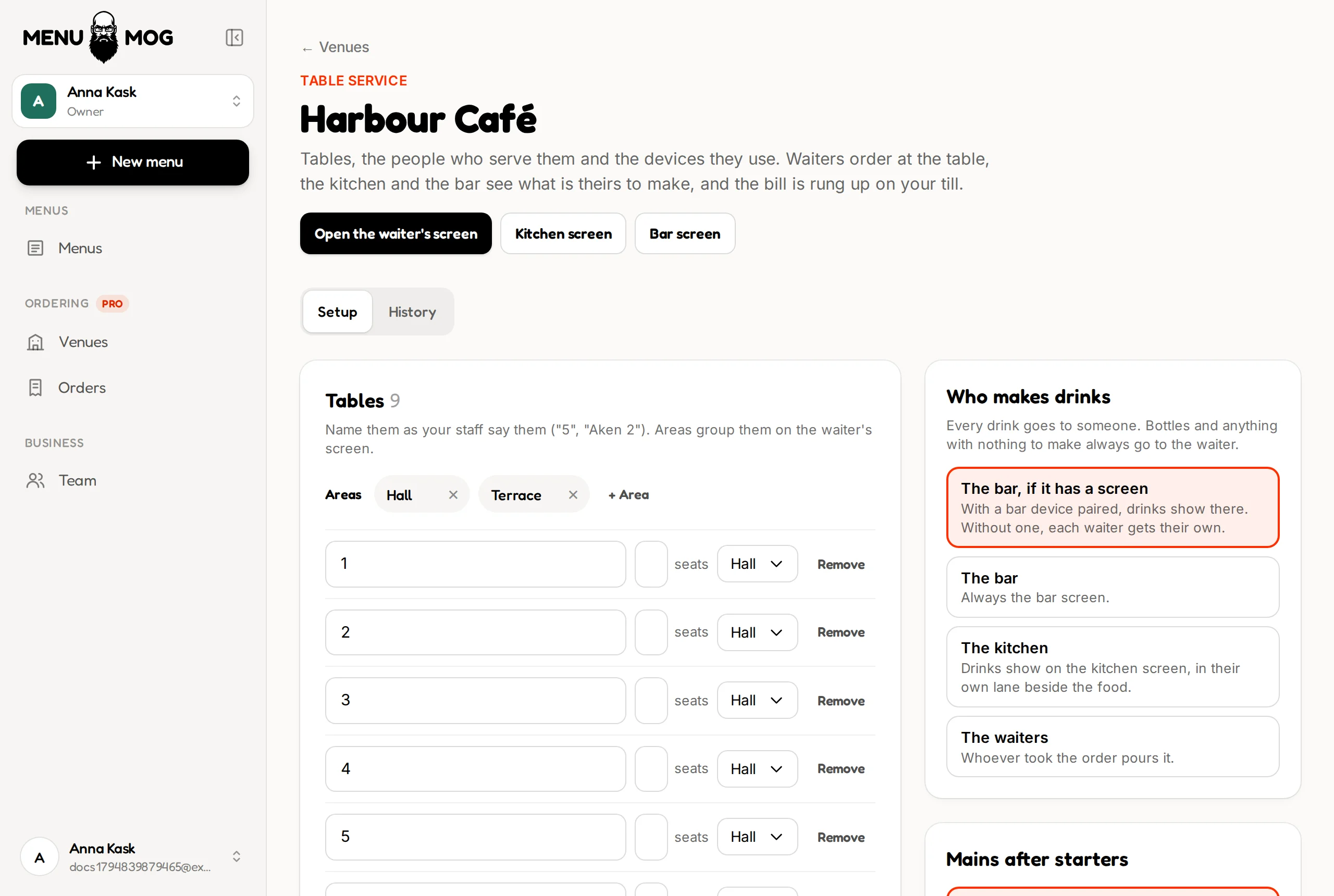
2. Add the people who serve
On the same page, under People, add each waiter by name with a PIN of 4 to 6 digits. They need no MenuMog account and no email address.
- Every order then says who took it, and the day's history says who did what.
- Anyone can serve any table: a colleague picks up where another left off.
- When someone leaves, switch them off. Their name stays on what they did; their PIN stops working at once.
- Tick May take off sent lines for the people who may remove a dish the kitchen already has, or reopen a paid bill.
3. Pair the phones and screens
Each device is paired to the venue once. After that it opens straight to its own screen.
- Under Devices, name the device ("Mari's phone", "Kitchen tablet") and say what it is for: a waiter, the kitchen or the bar. MenuMog shows a code of 8 characters.
- Scan the QR code on that page with the device's camera: one scan and it opens its screen. Or open www.menumog.com/floor on the device and type the code. It works once, for 15 minutes.
- On a waiter's phone, the waiter taps their name and types their PIN. Kitchen and bar screens need nobody signed in.
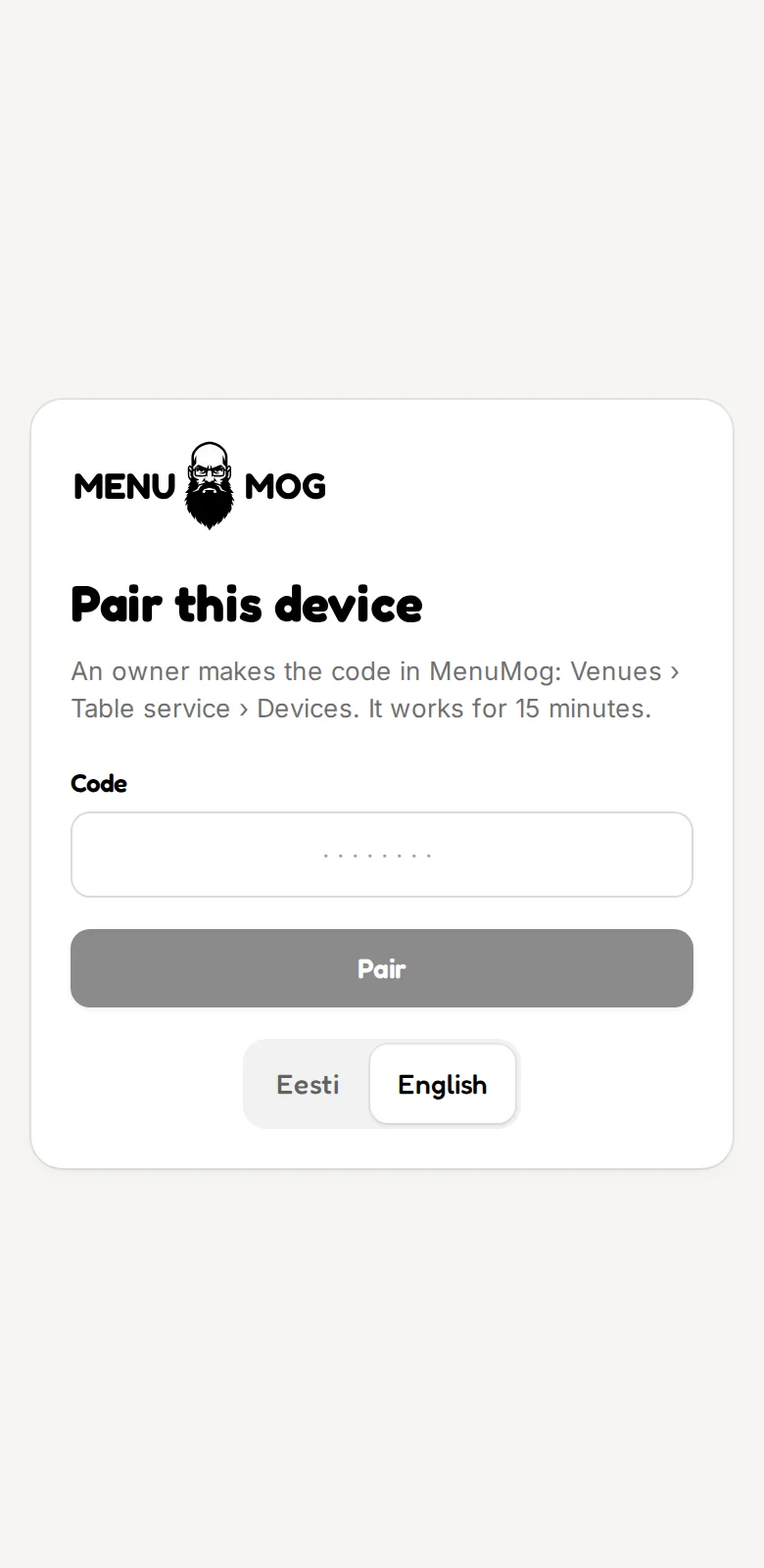
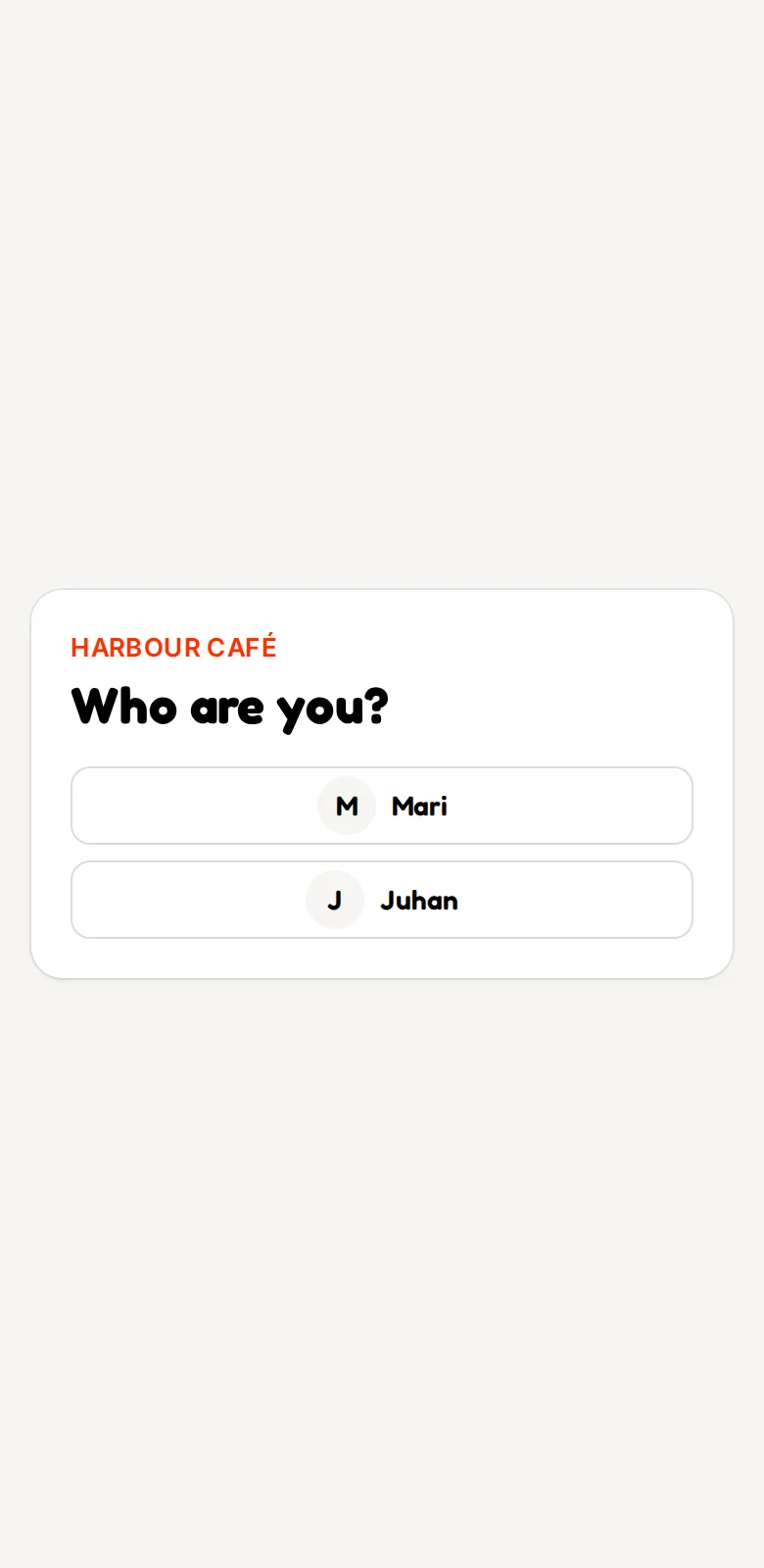
A lost phone or an old tablet is switched off on the same page, and stops working on its next tap.
4. Install it as an app
The staff screens install to the home screen like any app, with no app store.
- Android: the waiter's screen offers Install as an app. It then opens full screen, and starts without a connection too.
- iPhone and iPad: in Safari, tap Share and choose Add to Home Screen.
- Notifications: a waiter turns them on once, on their own phone. When the kitchen marks a dish ready, the phone says which table and what, with the screen off too. On an iPhone this works once the app is on the Home Screen.
- Kitchen and bar: the screen has a Full screen button, stays awake by itself, and has a dark and a light look.
5. Take an order
The waiter's first screen is the room: every table, and what is going on at each.
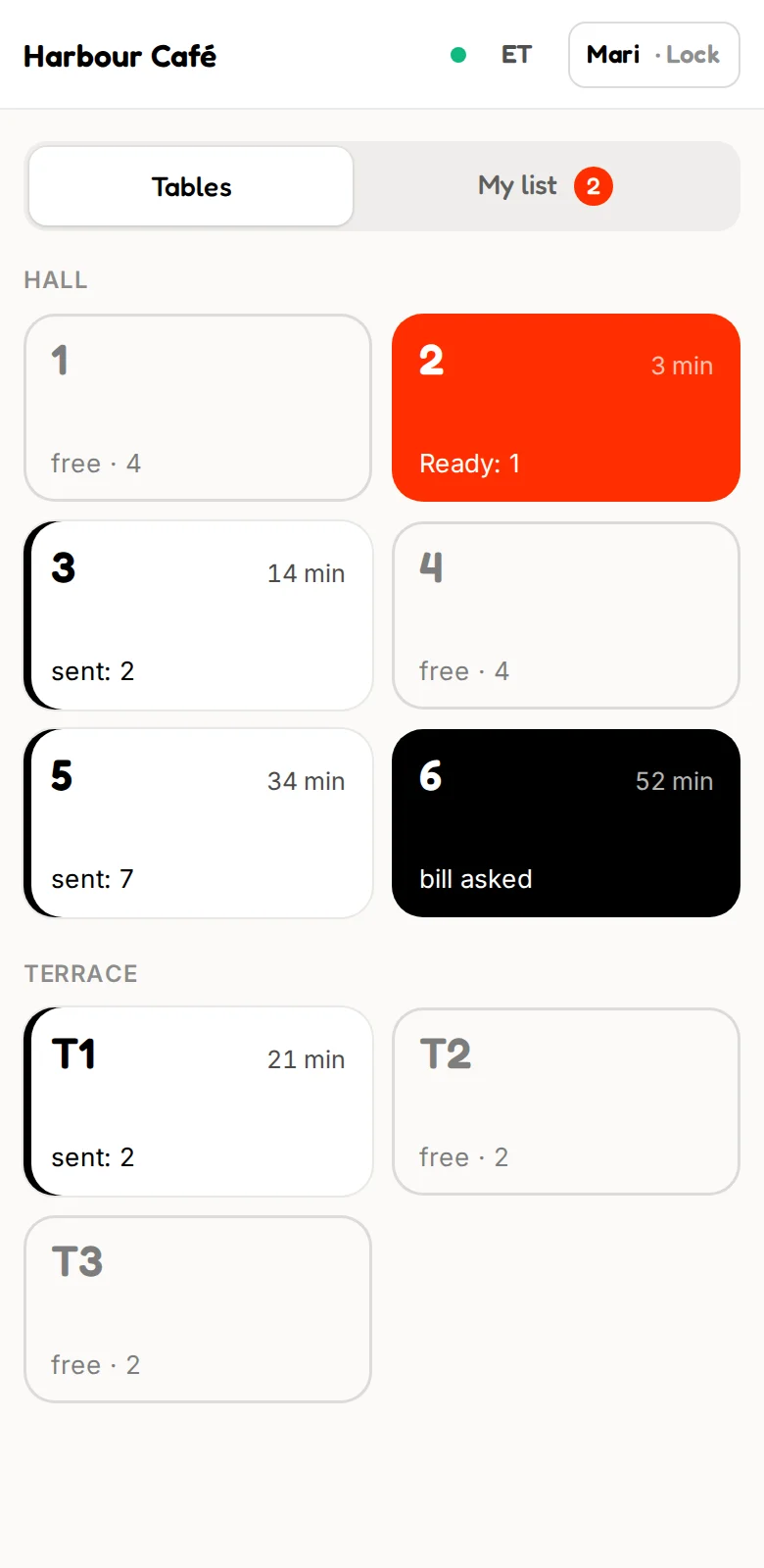
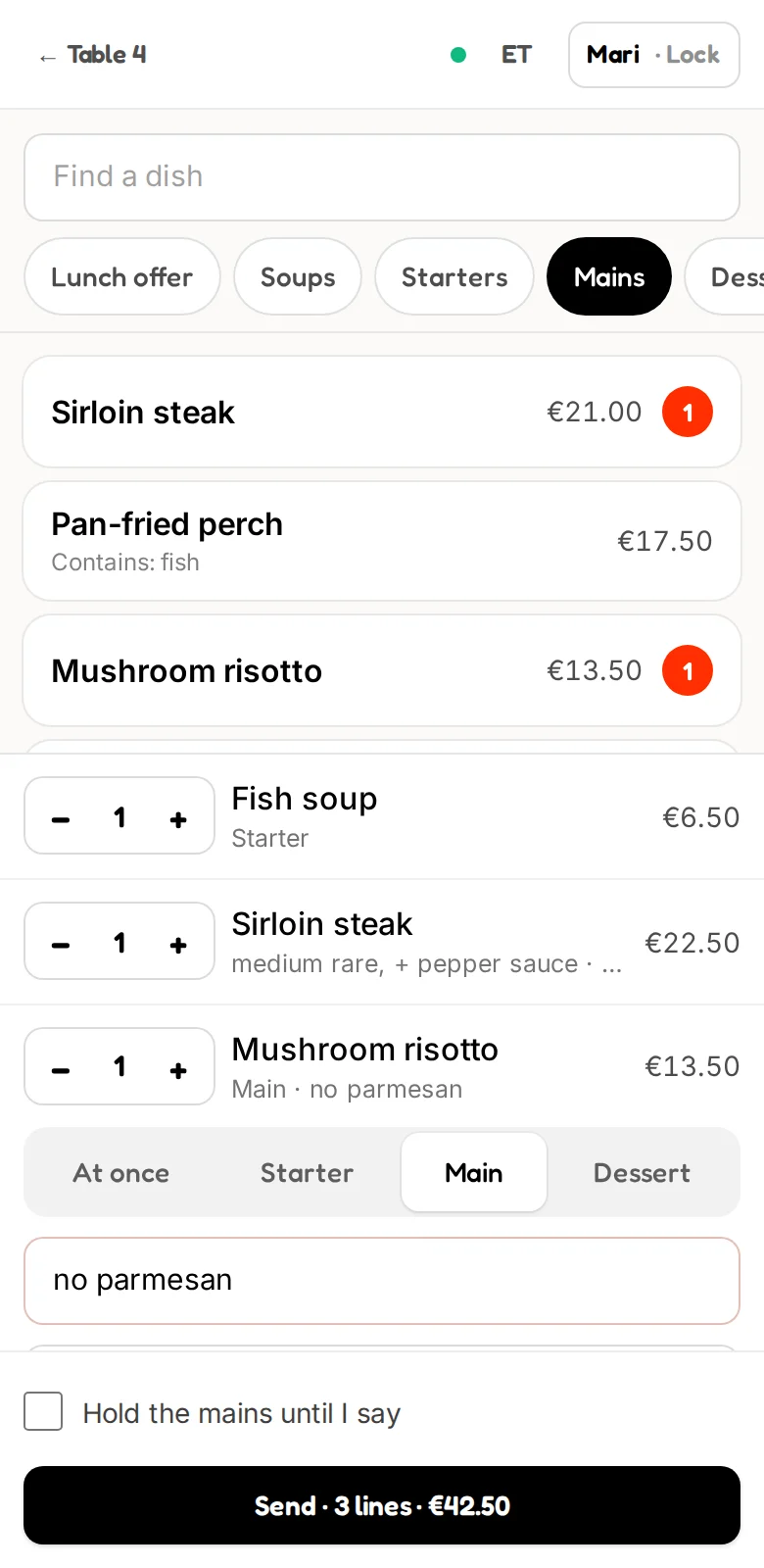
- Tap a free table. It opens, ready to order.
- Tap dishes to add them; tap again for one more. Search finds a dish by name.
- A dish with sizes or choices asks first: the size, how it is cooked, any extras with their price.
- Tap a line to add a note for the kitchen, mark an allergy, or change its course.
- Press Send. The lines go to whoever makes them.
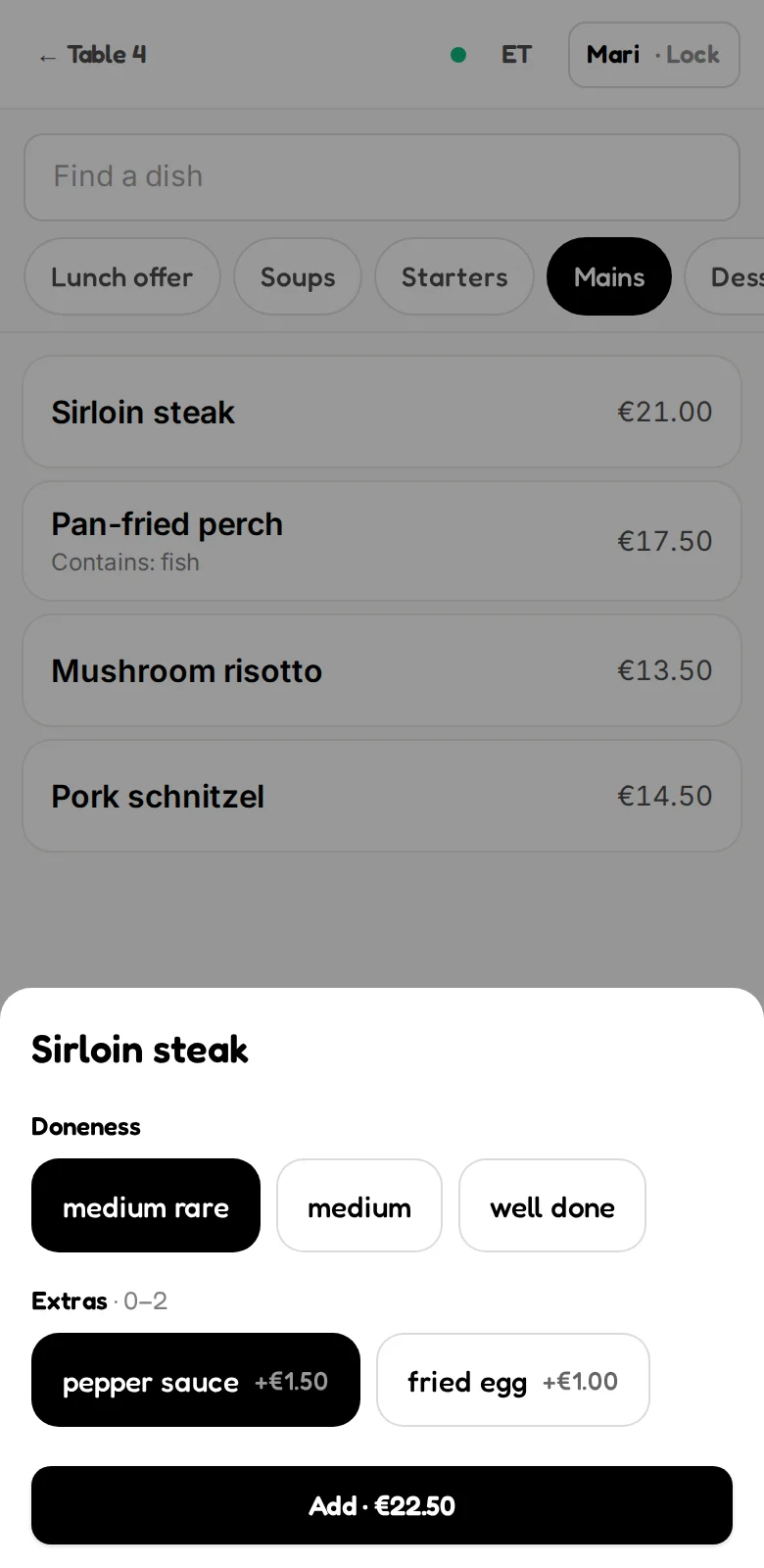
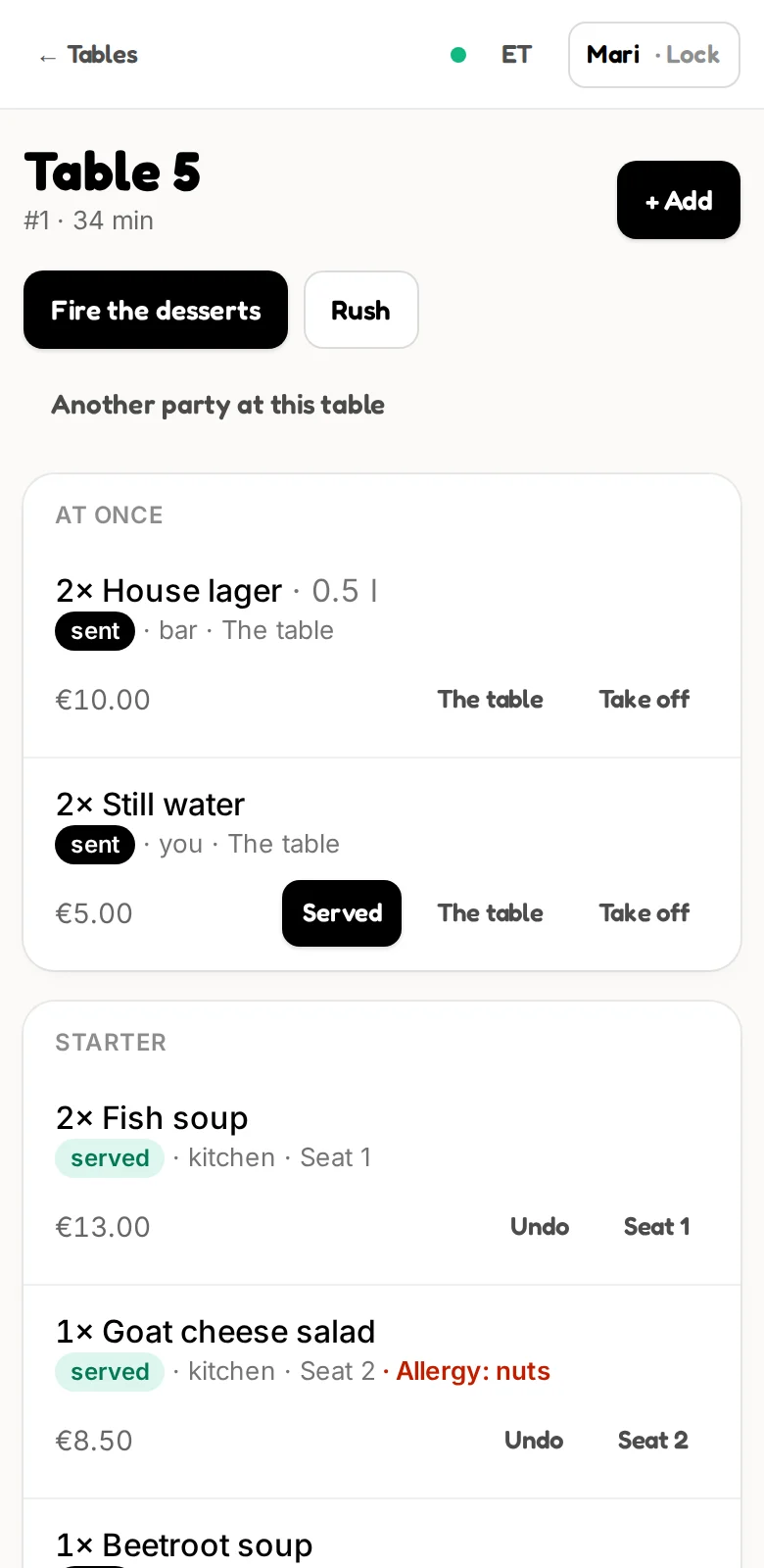
An allergy note travels with the dish and heads the kitchen's ticket in its own colour. The menu's allergens show under each dish while ordering.
6. Courses take care of themselves
MenuMog reads your menu's sections, so a soup is a starter and a steak is a main without anyone marking it.
- Drinks go out at once.
- Starters go to the kitchen when the order is sent.
- Mains go to the kitchen when the table's starters are ready, so nothing sits under a lamp. A table with no starters gets its mains at once.
- Desserts wait for the waiter's word: one tap on Fire the desserts.
The waiter can change any line's course, hold the mains on purpose, or mark a table Rush so its tickets go first. If you would rather the mains wait for the waiter's word too, choose that on the Table service page.
7. The kitchen and bar screens
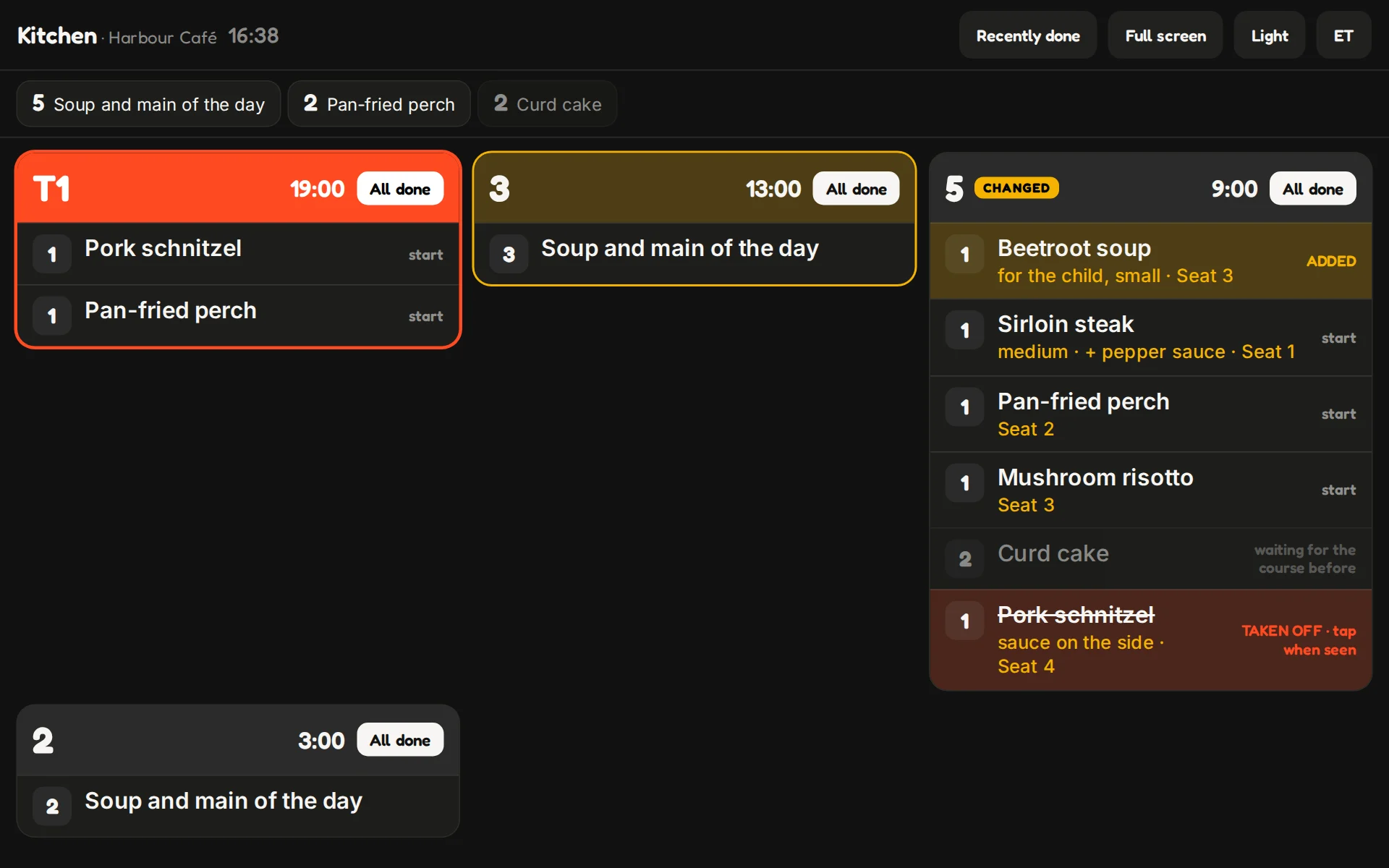
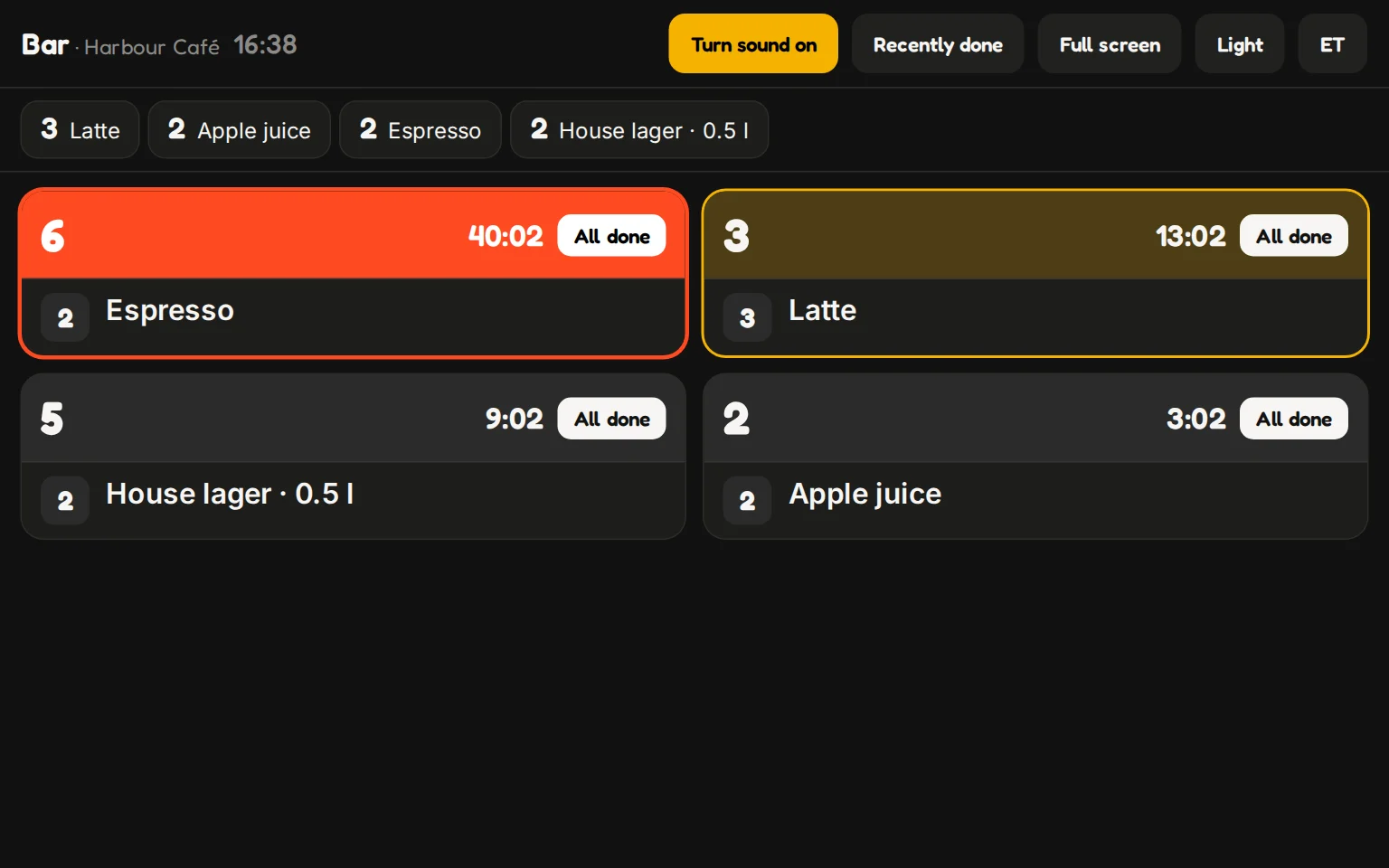
A station's screen shows only what that station makes, as one ticket per table.
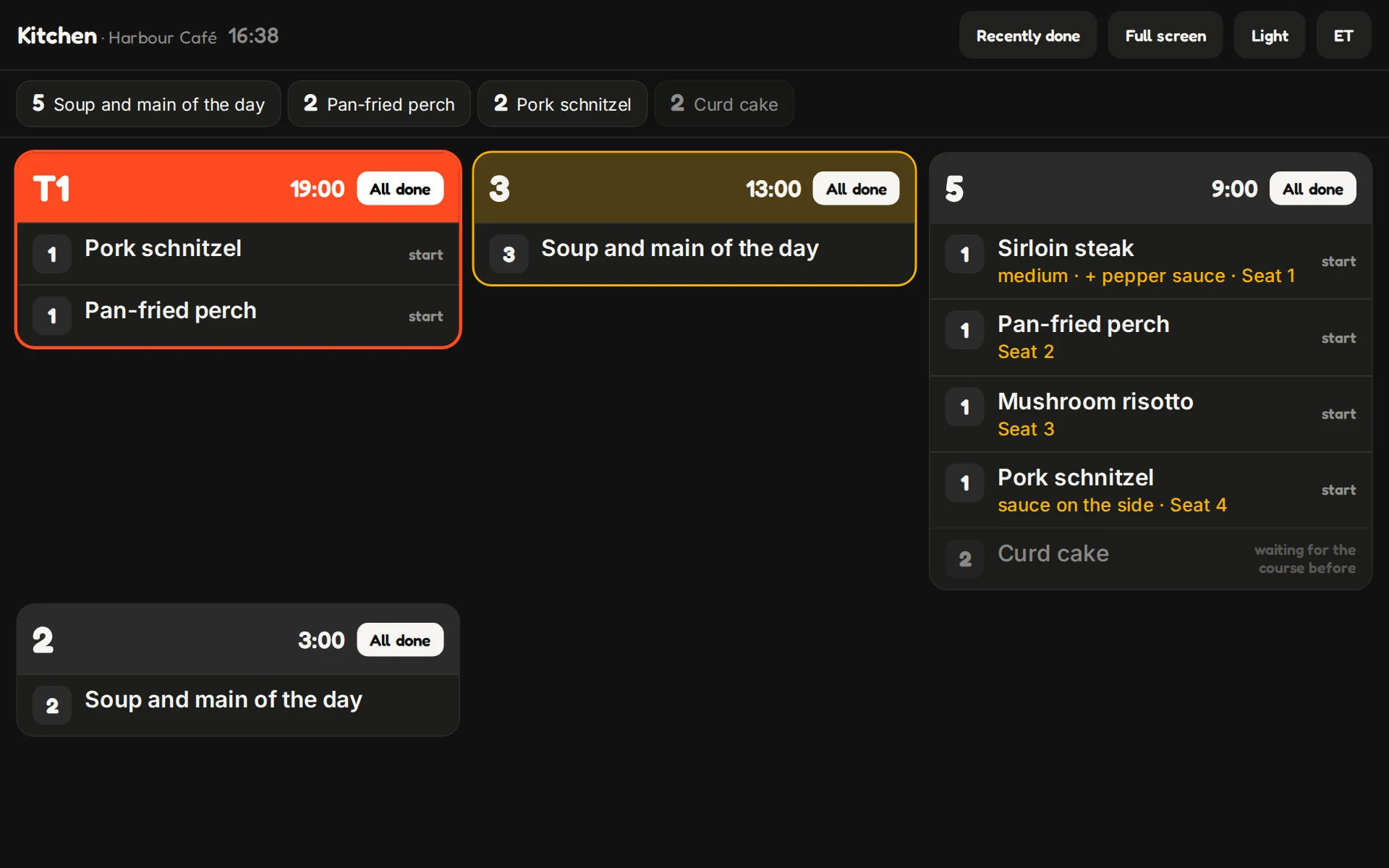
- Order of work: tickets are sorted by how long they have been waiting, with rushed ones first. A ticket turns amber, then red, as it ages.
- Inside a ticket: the slowest dish is on top, with a hint when to start the quicker ones, so a table's dishes finish together.
- Dish totals: the strip on top counts each dish across every open ticket, so four soups are ladled at once. During lunch the lunch dishes lead.
- Done: one tap on a ticket's head marks everything on it done; a tap on a row marks one dish. There are five seconds to take it back, and a Recently done list after that.
- Coming next: a course that is still held shows greyed below, so cooks can look ahead.
- Learns your kitchen: how long each dish takes is learned from your own service and used for the order of work.
8. Who makes the drinks
Every drink goes to someone. You choose who, on the Table service page:
- The bar, on its own screen.
- The kitchen, in a lane of its own beside the food.
- The waiters: whoever took the order pours it, from their own list.
A bottle of water or a basket of bread has nothing to make. Mark such a dish Nothing to make in the menu editor and it goes straight to the waiter. A dish can also be made somewhere else than its section says: a dessert the bar plates, for instance.
9. Carry and pour
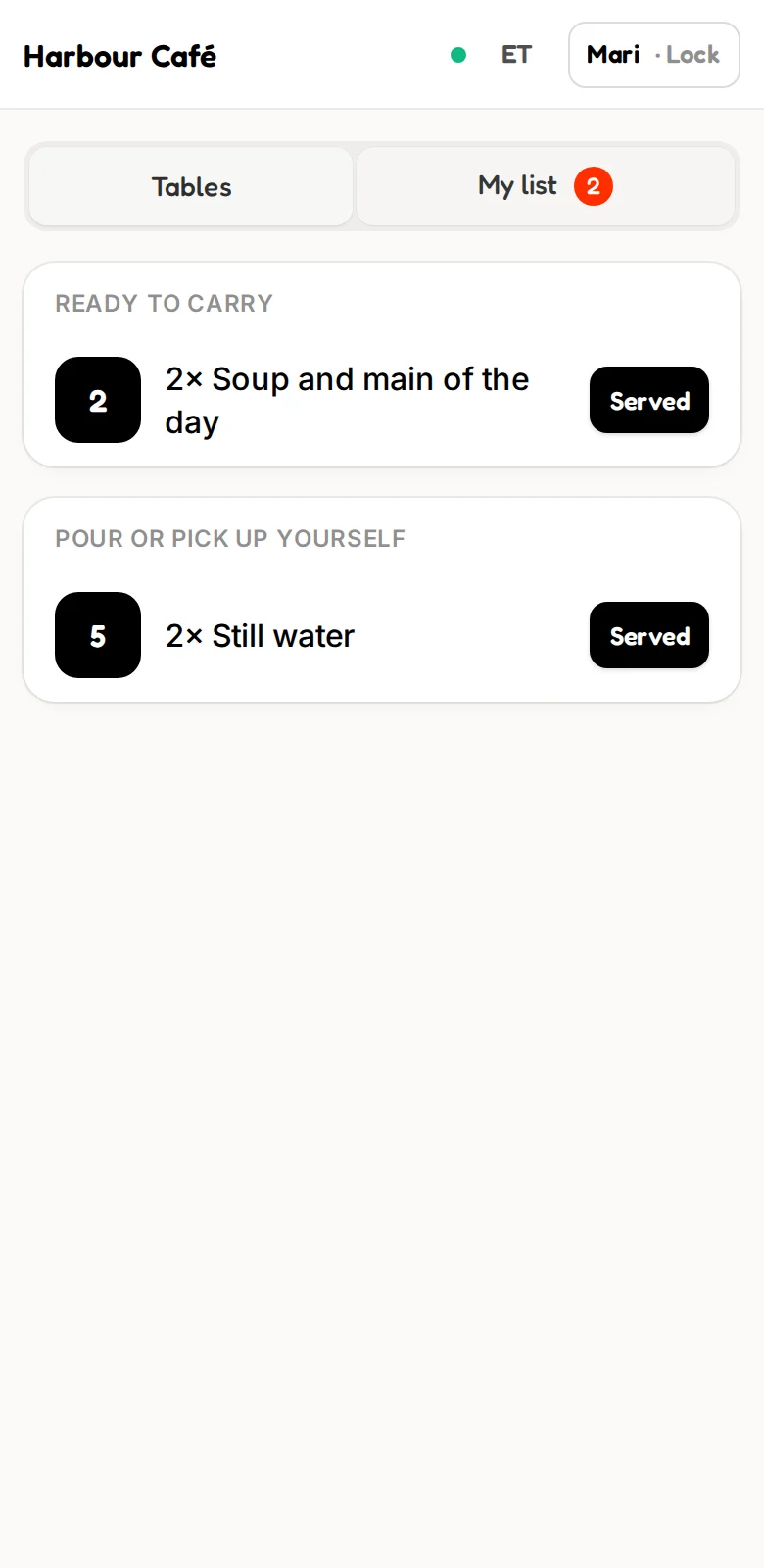
When a station marks a dish ready, its table turns red on every waiter's phone and the waiter who sent it is told.
My list gathers everything to carry and pour, across all tables. One tap on Served and it is done.
A dish that came out wrong goes back with Back to the kitchen, and returns to the front of the kitchen's screen.
10. Bills: split them any way the table asks
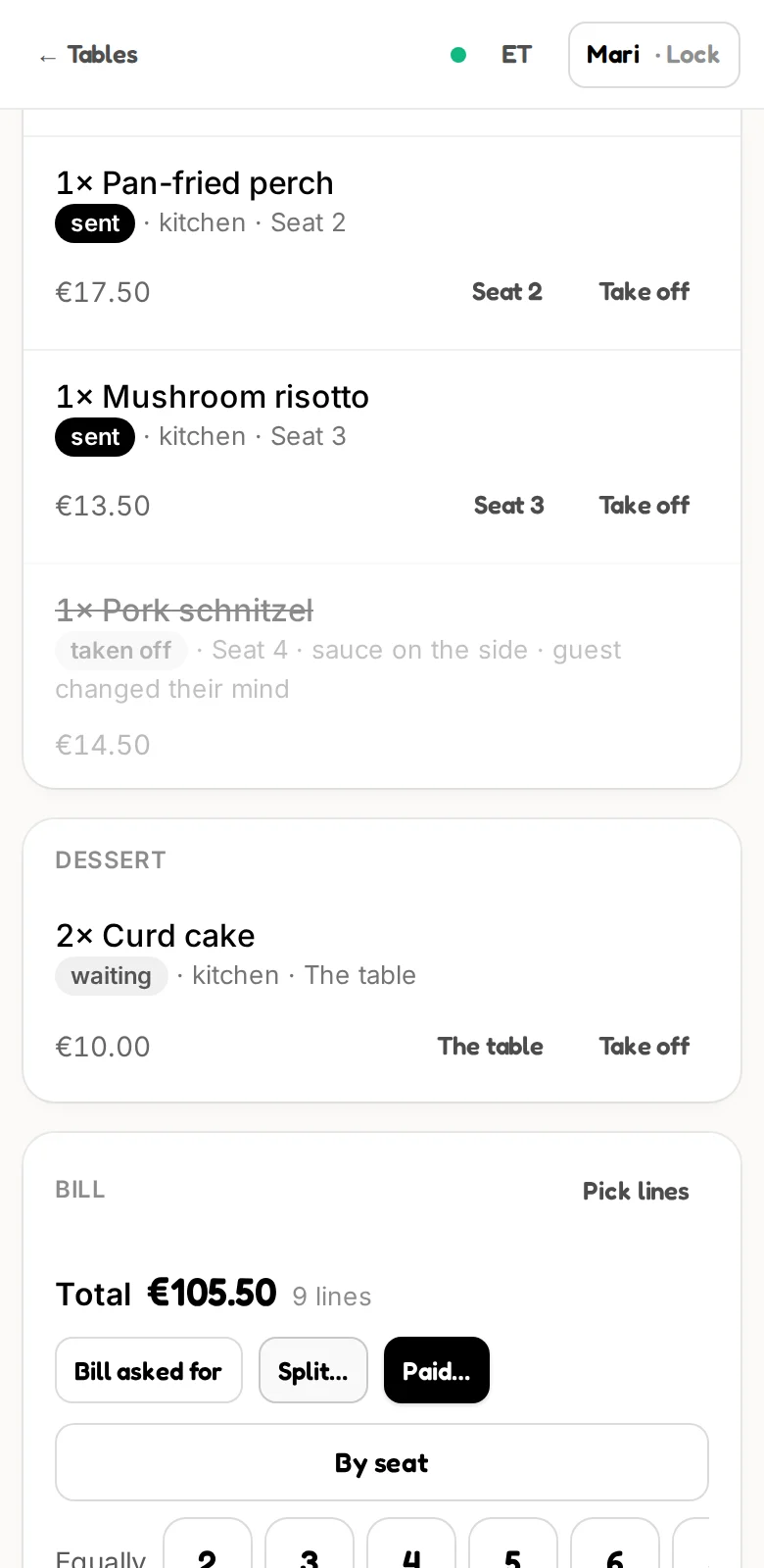
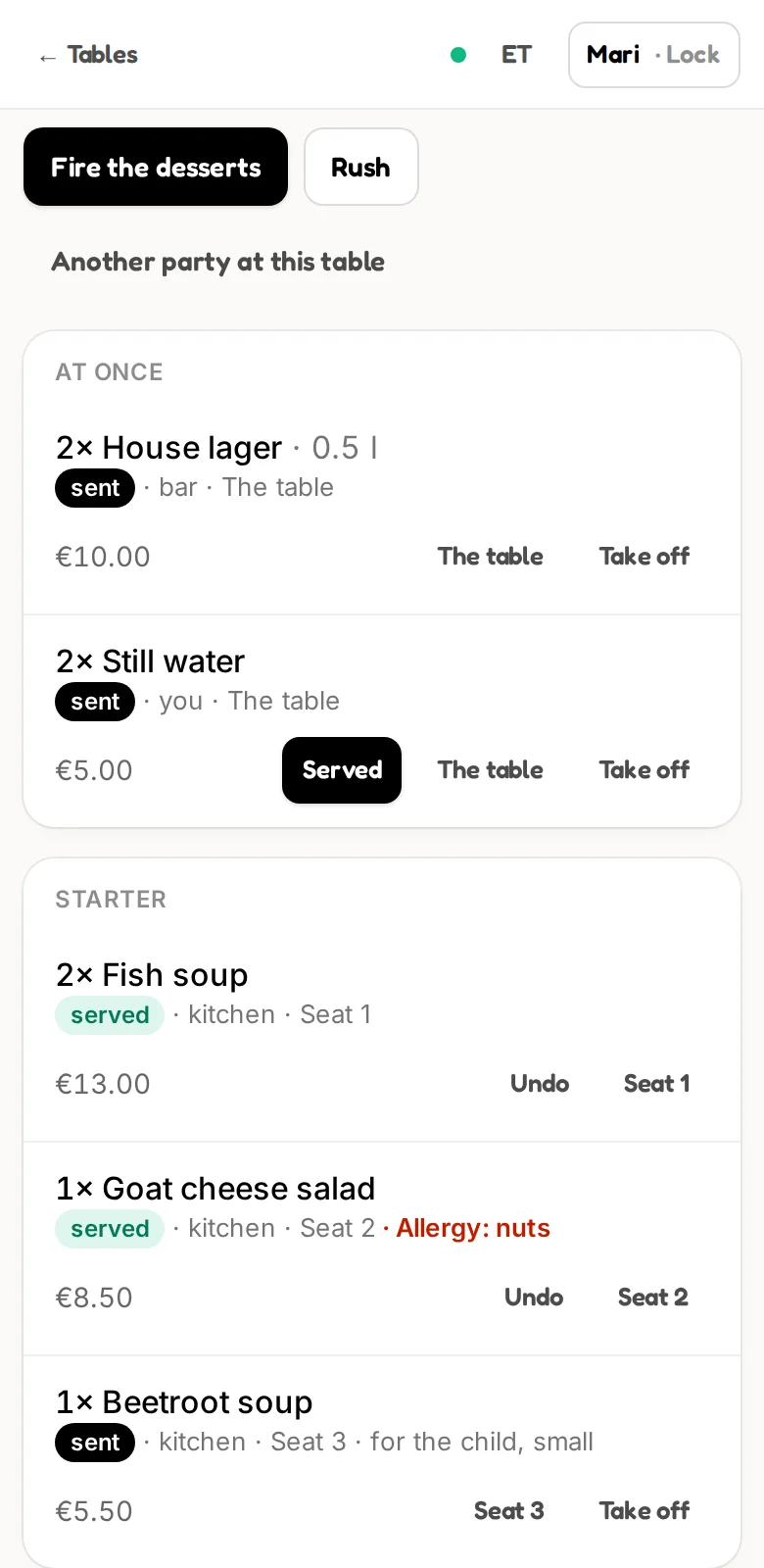
- By seat: one tap gives every seat its own bill. Dishes for the whole table stay on the table's bill.
- Equally: into two to eight. The bills differ by a cent at most, and always add up.
- By dish: pick lines and move them to another bill, or a new one.
- A shared dish: one line can be shared between the bills, a pizza between three.
- Merge: several bills become one again.
- Paid: ring the bill up on your till, then mark it paid by card, cash or other. A paid bill is closed; when every bill is paid and everything is served, the table is free again.
11. Seats, moving and joining tables
- Seats are optional. Switch a table to Order by seat and each line can belong to a seat or to the whole table. Tables that never use seats never see them.
- Two parties, one table: a long table can hold several parties at once, each with its own lines and bills.
- Move: a party that changes tables takes everything along.
- Join: two parties that sit together become one, with all their lines and bills.
12. When the connection drops
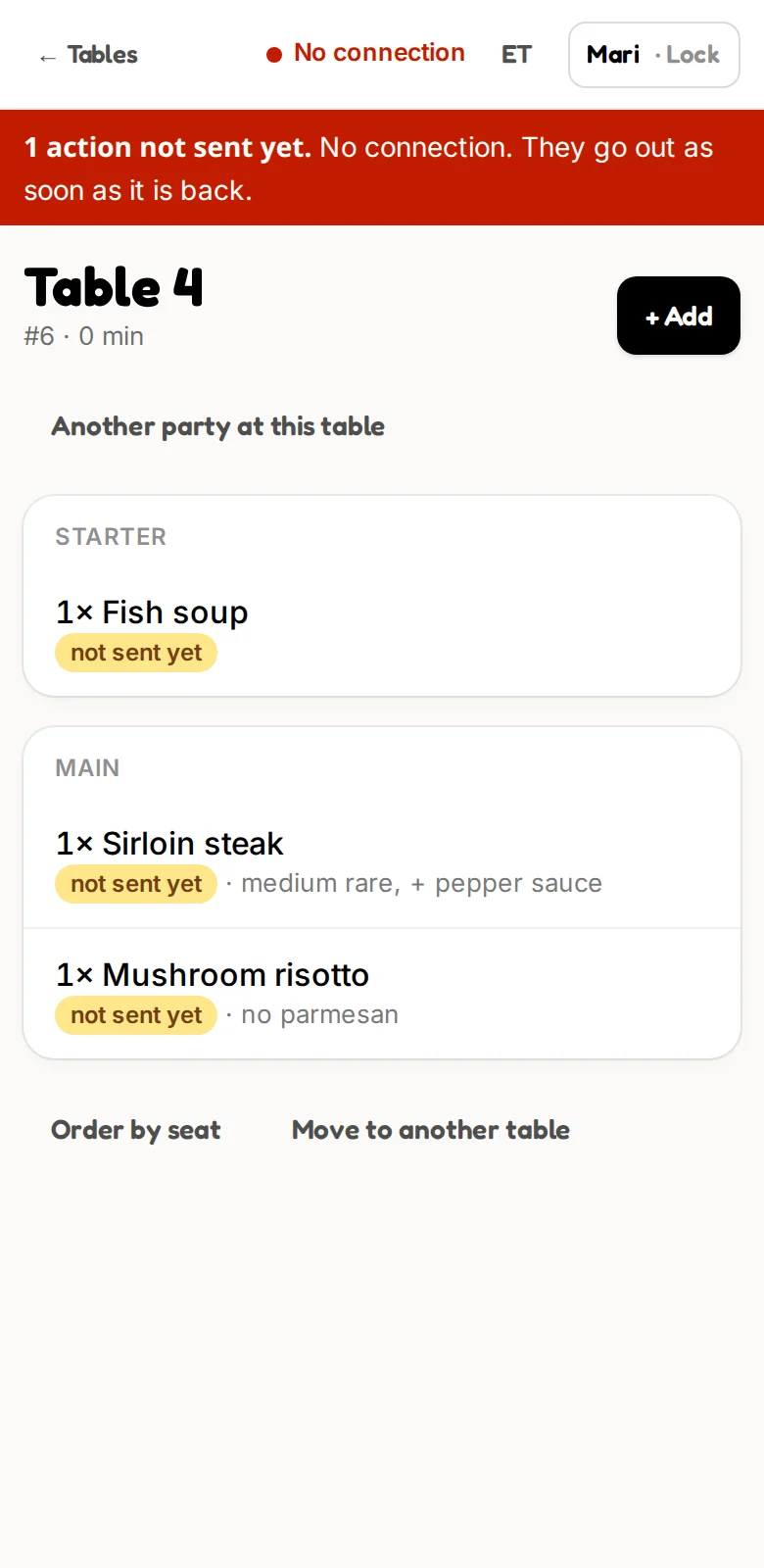
A waiter keeps working. Orders taken without a connection are kept on the phone, marked as not sent, and go out in order the moment it is back. Each one lands exactly once, however shaky the signal was.
The installed app opens without a connection too, with the room as it was last seen.
A kitchen screen that loses its connection says so in a red bar, with the time since. When it is back, the screen catches up by itself.
13. The day, afterwards
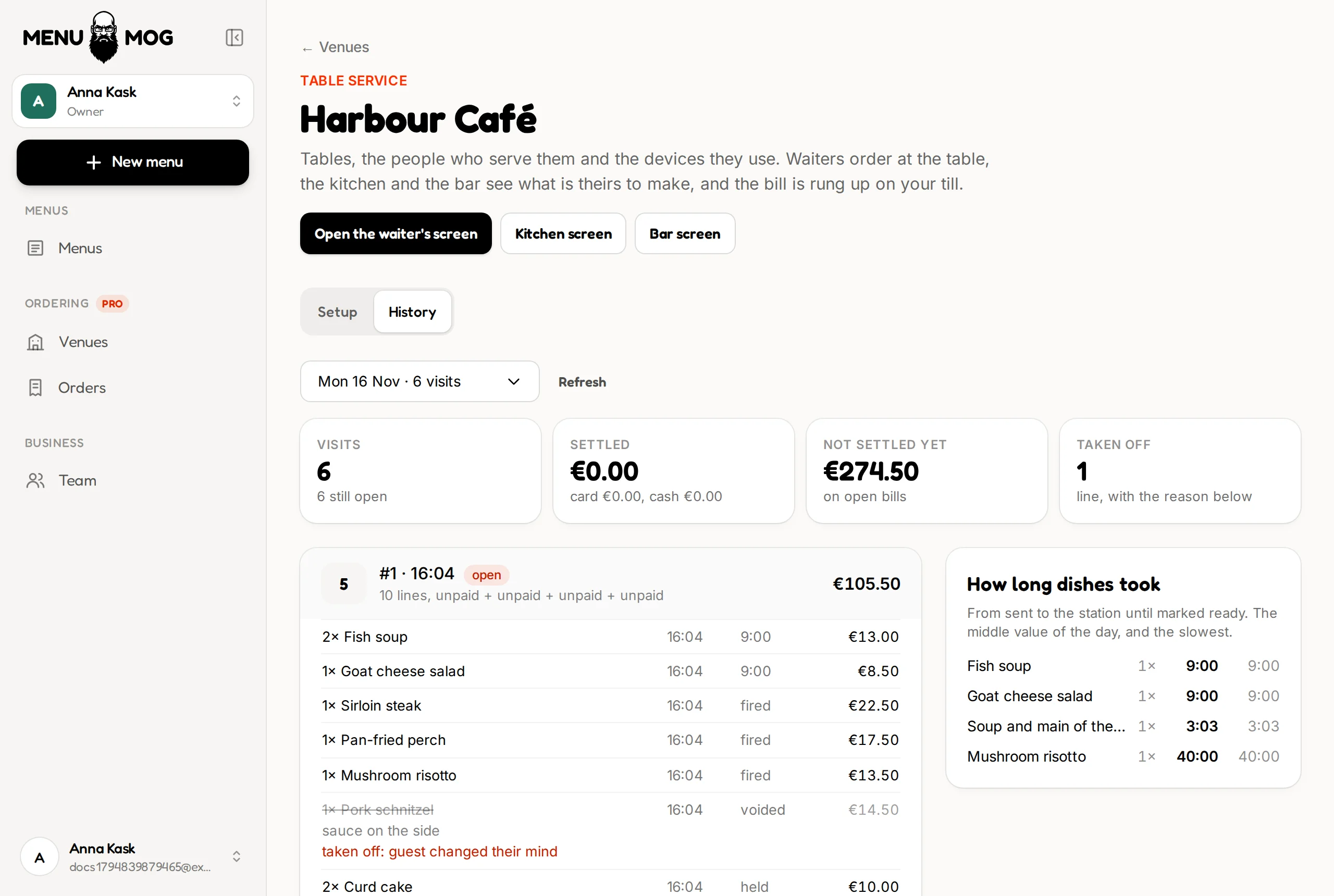
Under Orders every day of service is kept: each table's visit with its lines, who sent them and when, how the bills were paid, what is still open, and what was taken off, by whom and why.
14. Choices and extras on your menu
In the menu editor, each dish has a section When it is ordered.
- Add a choice such as Doneness or Side, and say whether the waiter must pick one, may pick one, or may pick several.
- Give an option a price and it becomes an extra: cheese +1 €.
- One button copies a dish's choices to every dish in its section, so every steak asks how it should be cooked.
Guests reading your menu do not see this part. It is for ordering only.
Questions
- Does MenuMog take the payment?
- No. MenuMog keeps the tables, the orders and the bills. You ring a bill up on your own cash register or card terminal as you do today, and mark it paid in MenuMog.
- Do guests order by themselves?
- Orders are taken by your staff. Guests read your menu from the QR code on the table, in their own language, and order from the waiter.
- Which devices does it run on?
- Any phone, tablet or computer with a current browser: Android, iPhone, iPad, a Windows touch screen. There is nothing to buy from an app store; the screens install to the home screen from the browser.
- Do waiters need their own accounts?
- No. A waiter is a name and a PIN that you add on the venue's Table service page. Owners and editors of the business can also work the floor from their MenuMog account.
- Can two waiters serve the same table?
- Yes. Any waiter can add to any table at the same time, and each line says who sent it. When two people change the same bill at once, the second is asked to look again, so nothing is overwritten.
- What happens when someone leaves the team?
- Switch the person off, and their PIN stops working at once. Switch a lost device off and it stops on its next tap. Everything they did stays in the history under their name.
- What if the Wi-Fi drops in the middle of service?
- Waiters keep taking orders. The phone holds them, shows them as not sent, and sends them in order when the connection is back. Each order lands once.
- In which languages are the staff screens?
- In Estonian and English, switched with one tap on each device. Your menu itself is shown to guests in the languages you offer.
- Can I take a dish off after it was sent?
- Yes. A dish that has not gone to the kitchen yet can be taken off by any waiter. One that the kitchen already has needs a person you gave that right, and a reason. The kitchen sees it struck through until a cook taps it.
Set up your first venue
Your menu is already in MenuMog. Tables, people and devices take a few minutes more.
Create a free account