TV Daily Menu Setup Guide
Display your daily specials and menus on a TV screen. Professional look, zero hassle, updates automatically.
See it on TV
This is how your daily menu looks on a TV screen. Bold, beautiful, and impossible to ignore.
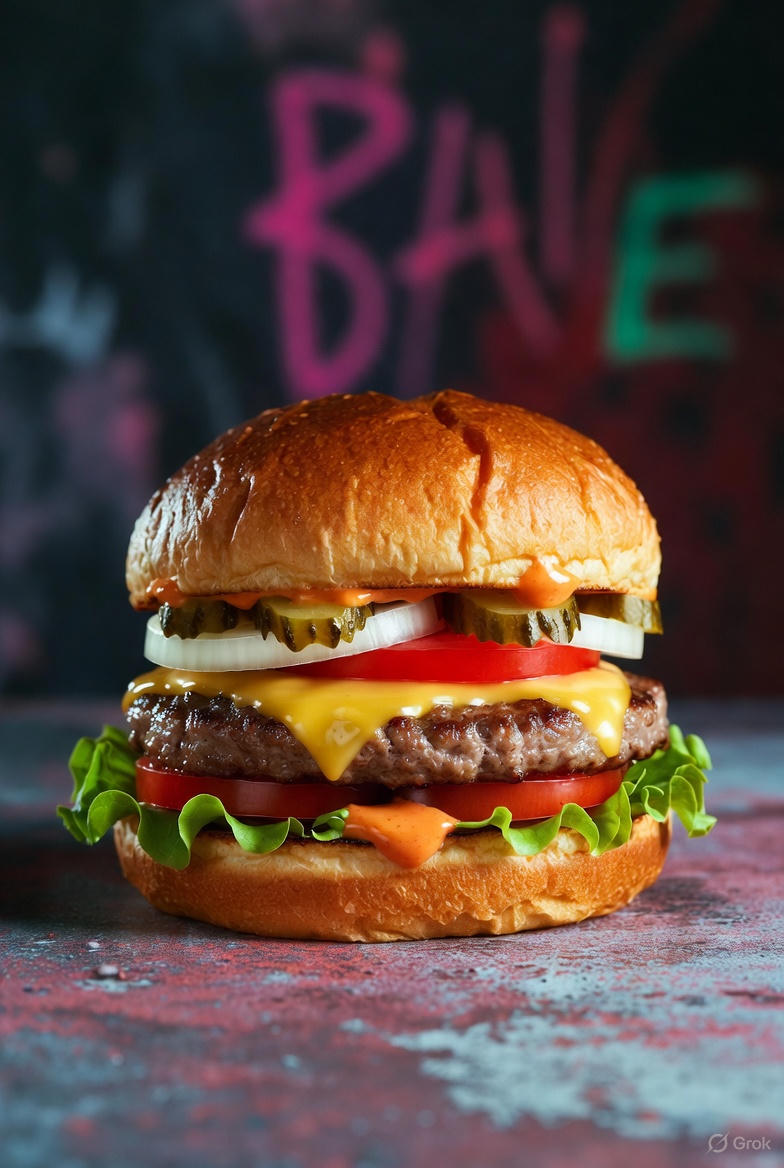
Classic Cheeseburger
Juicy beef patty with melted cheese, lettuce, tomato, and special sauce
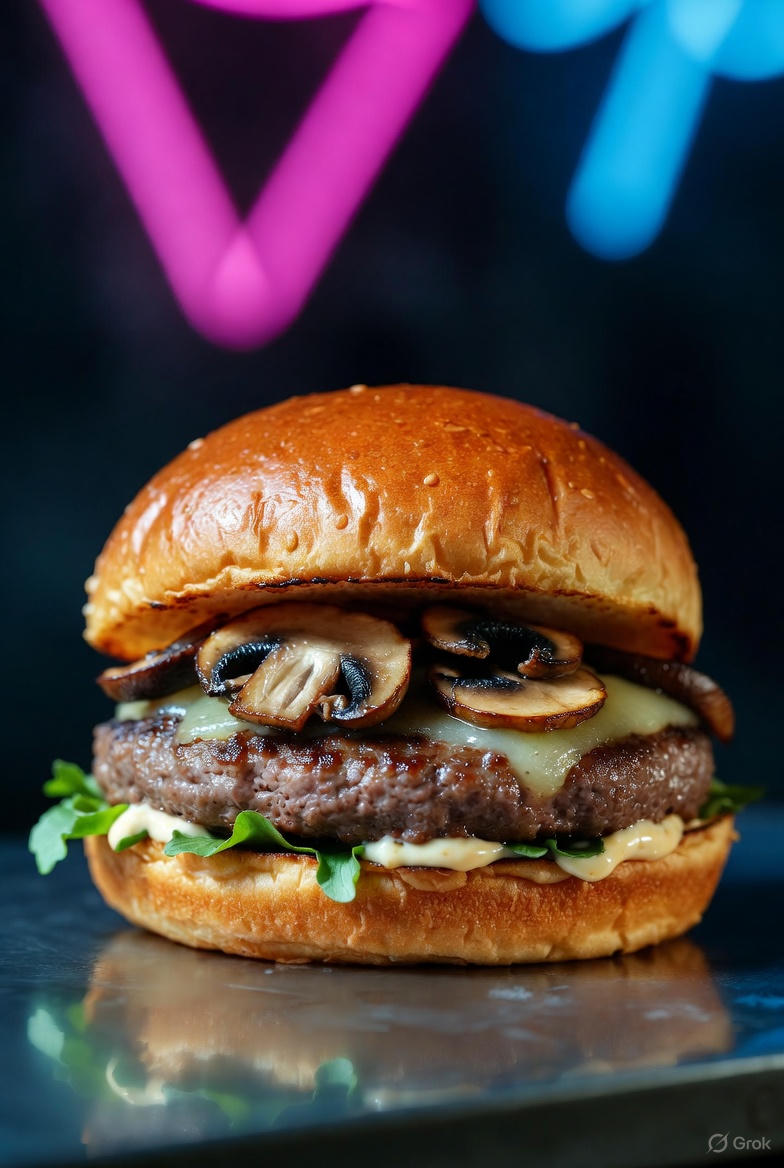
Mushroom Swiss
Premium beef with sautéed mushrooms and Swiss cheese
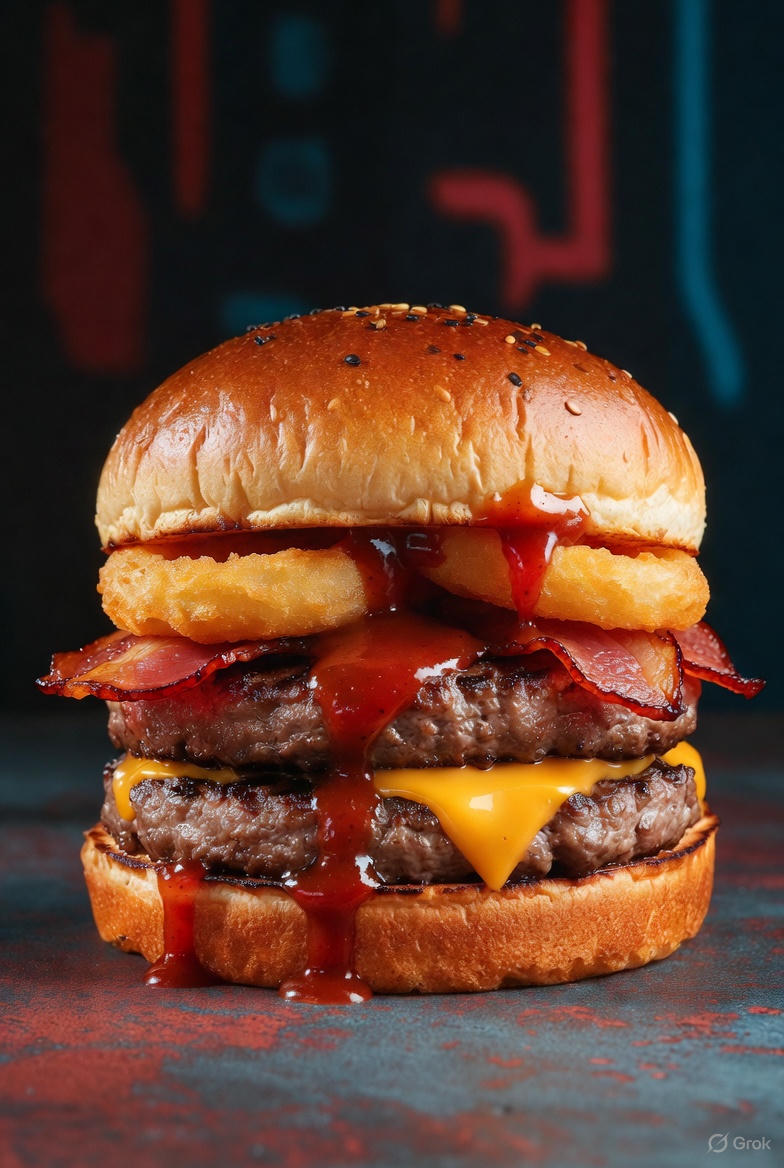
Bacon BBQ Burger
Smoky bacon, crispy onion rings, and tangy BBQ sauce
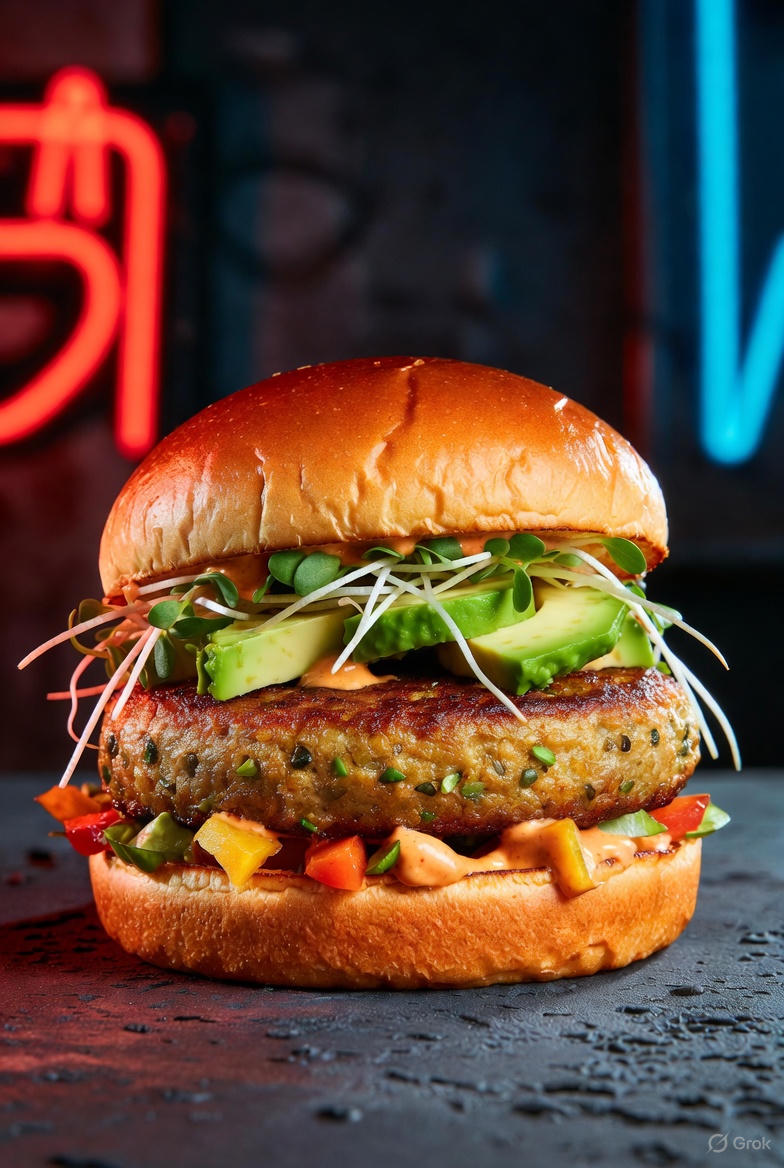
Veggie Burger
Plant-based patty with fresh vegetables and herb aioli
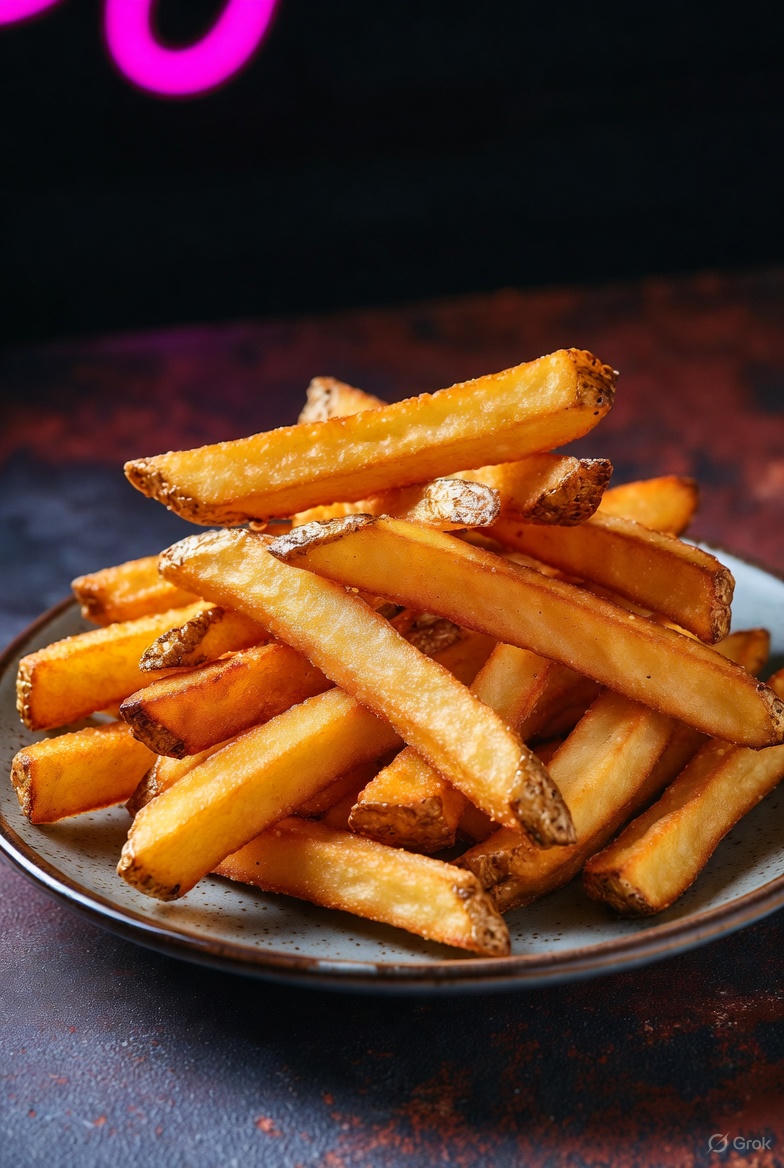
Crispy Fries
Golden crispy fries with sea salt
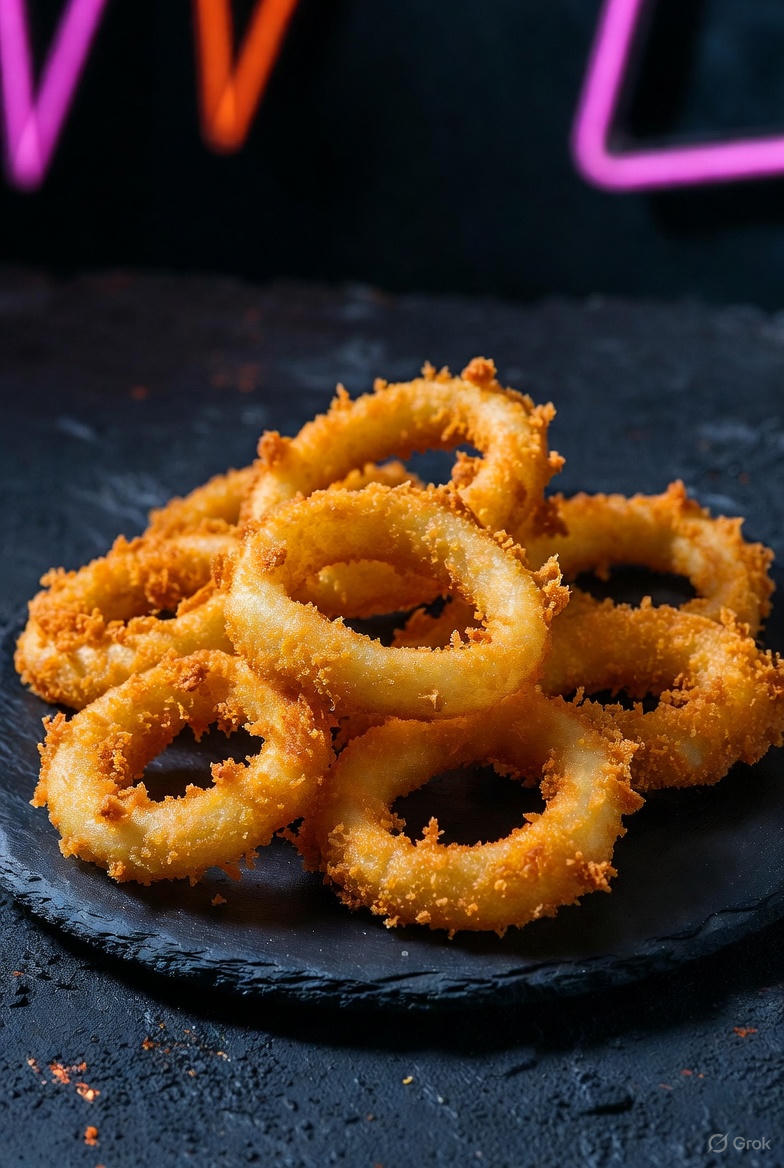
Onion Rings
Beer-battered onion rings, crispy and golden
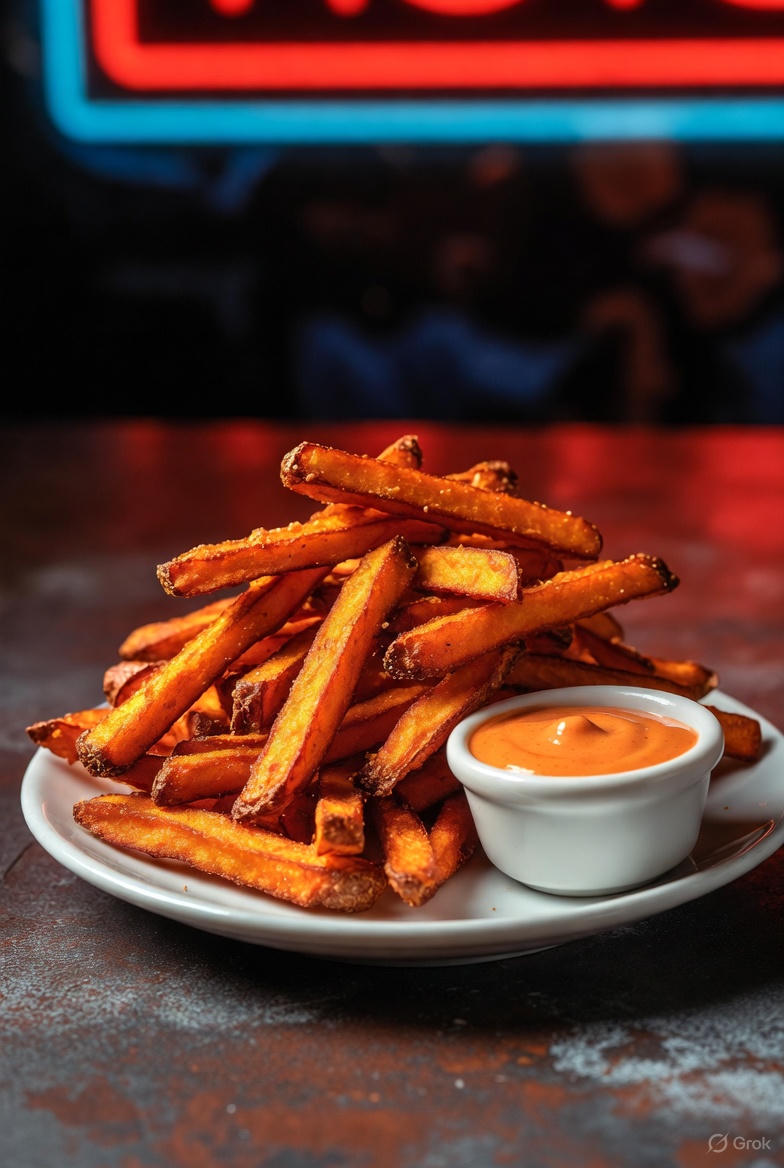
Sweet Potato Fries
Crispy sweet potato fries with chipotle aioli
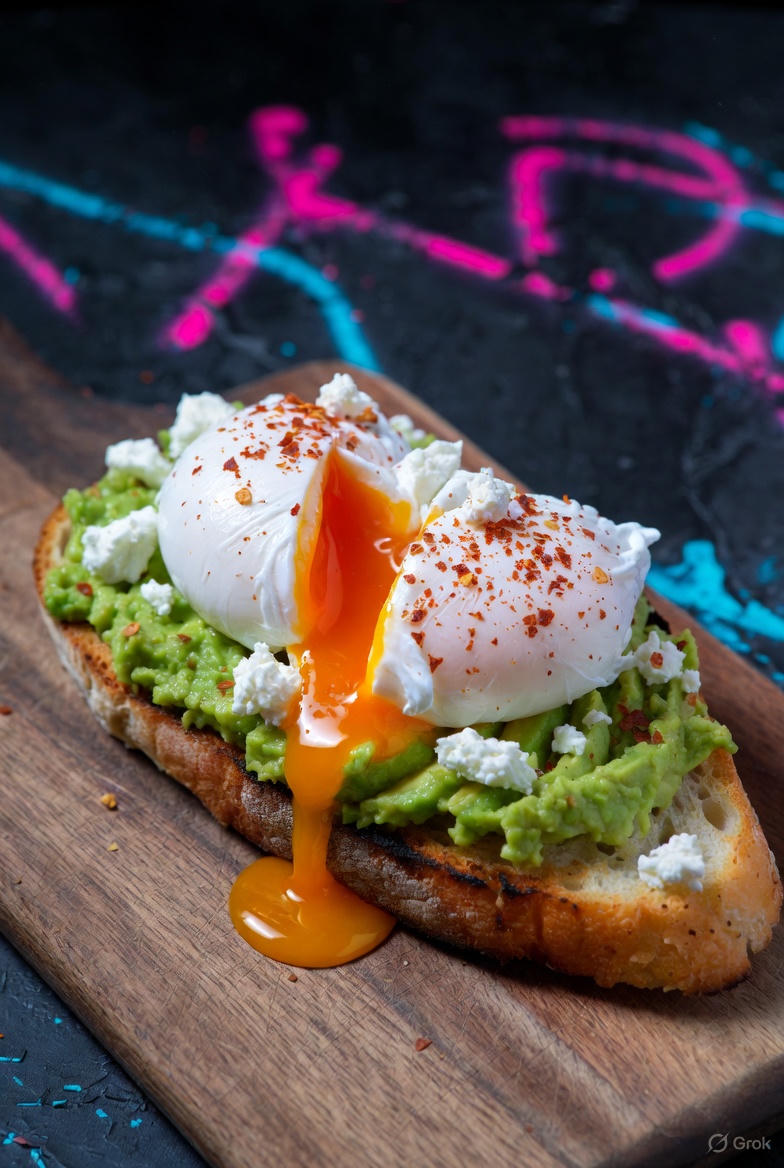
Avocado Smash
Fresh avocado, feta, and herbs on sourdough

Vanilla Shake
Creamy vanilla milkshake with whipped cream
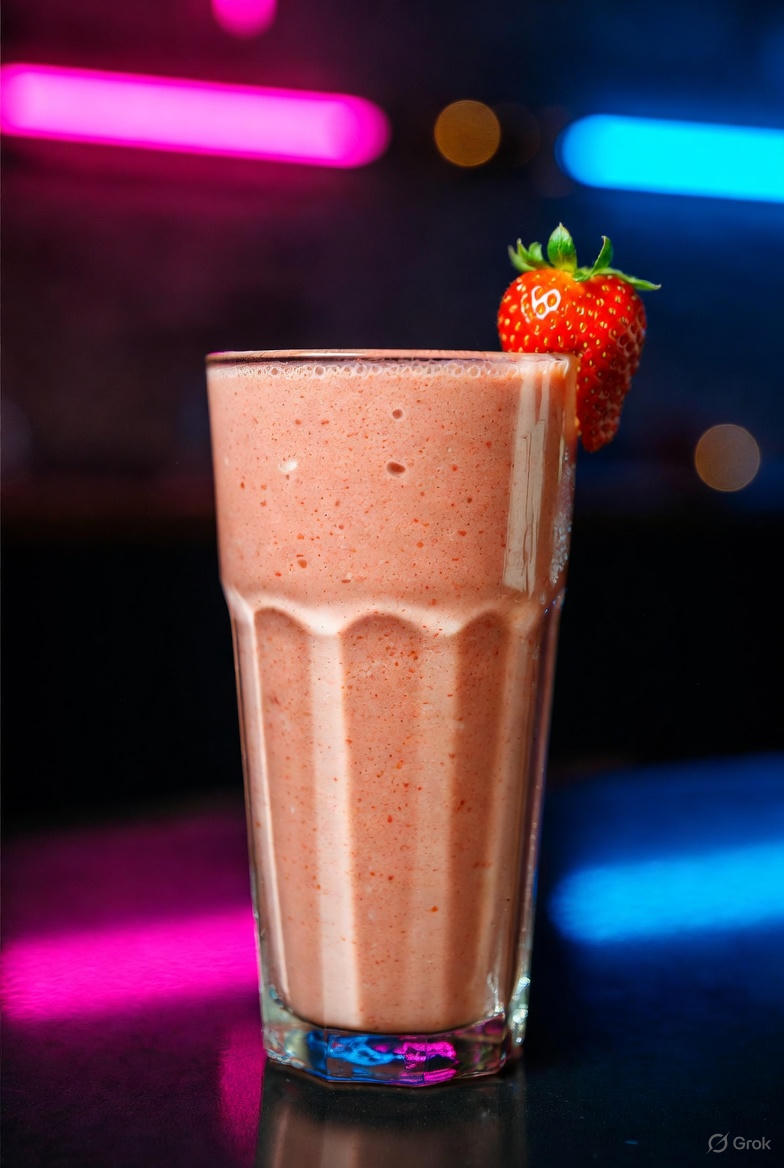
Strawberry Shake
Fresh strawberry milkshake with real fruit
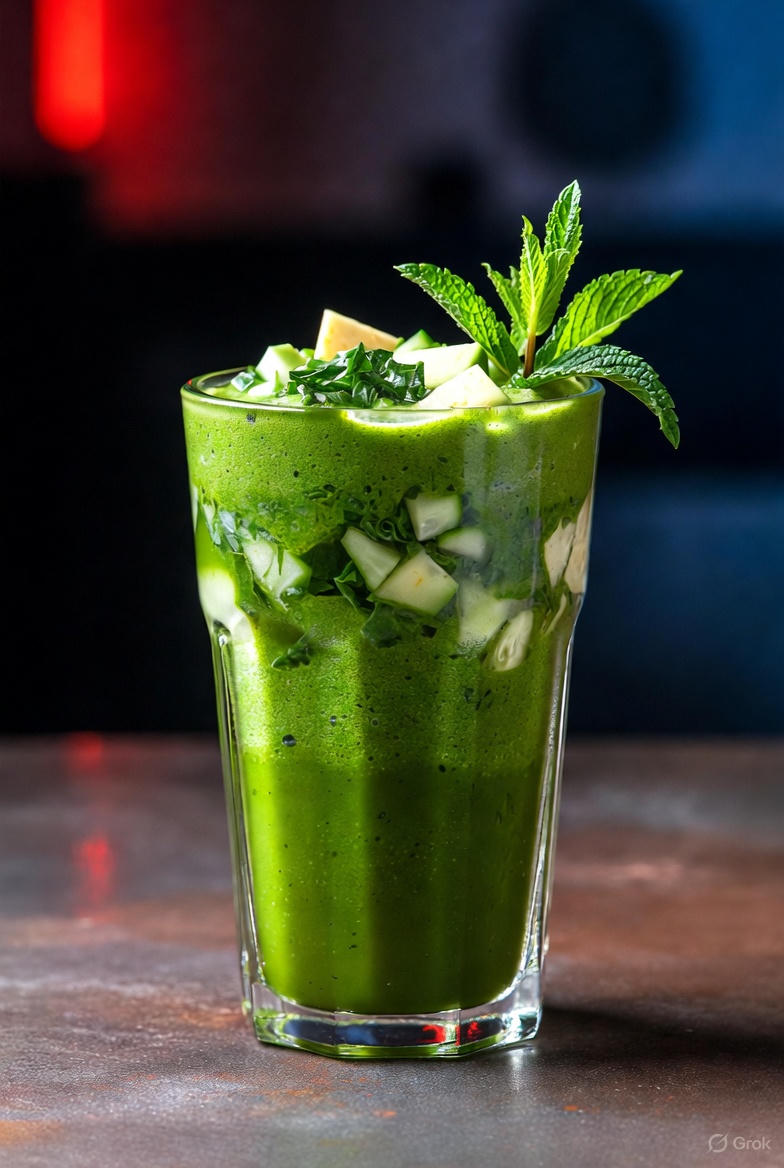
Green Smoothie
Spinach, kale, banana, and mango blend

Fresh Orange Juice
Freshly squeezed orange juice, served cold
What You'll Need
- A TV with an HDMI port (any modern TV works)
- A device to connect to the TV (laptop, mini PC, Chromecast, or smart TV with browser)
- A MenuMog account with at least one menu created
- WiFi connection for the device
- An HDMI cable (if using a laptop/mini PC)
Get Your Menu Display URL
First, get the public URL for your menu. This is the link that will display your menu on the TV.
- Log in to your MenuMog dashboard
- Find the menu you want to display under Your Menus
- Hit Copy URL on the menu card—or open the menu and hit Copy URL in the editor header
- The link looks like
menumog.com/view/abc123, where the last part is your menu's unique hash - Paste it somewhere you can reach from the TV device—you'll need it in the next step
Tip: If you're using Daily Specials, set up your schedule first. Specials are scheduled by day of the week and by specific date—not by time of day—so the TV highlights whatever you marked for today. The display rolls over to the next day's list on its own at midnight—no need to touch it.
Connect Your Device to the TV
Choose one of these methods to connect your device to the TV:
Option A: Laptop or Mini PC
- Connect your laptop or mini PC to the TV using an HDMI cable
- Switch the TV input to the HDMI port you connected to
- Open a web browser on your device
- Navigate to your menu URL
Option B: Smart TV with Browser
- Open the web browser app on your smart TV
- Navigate to your menu URL
- That's it—no extra device needed!
Option C: Chromecast or Streaming Stick
- Plug your Chromecast (or similar device) into the TV's HDMI port
- Cast your browser tab from your phone or laptop to the TV
- Navigate to your menu URL on the device you're casting from
Set Up Full Screen Mode
Make your menu look professional by displaying it in full screen:
- Once your menu is loaded on the TV, press F11 (Windows/Linux) or Cmd+Ctrl+F (Mac) to enter full screen
- The browser address bar and tabs will disappear
- Your menu will fill the entire screen
Pro tip: If you're using a laptop, close the lid after entering full screen. The TV will keep displaying the menu, and you can use the laptop elsewhere.
Configure Auto-Refresh
Auto-refresh is built in. The display checks back on a timer you control, so you never have to walk over to the TV:
- Auto-Refresh Menu is switched on by default—find it in Display Settings in the menu editor
- The Refresh Interval is 30 seconds by default, and you can set anything from 10 to 300 seconds
- Each check only redraws the screen when something actually changed, so the display stays steady
Changes you make to prices, items, daily specials, or display settings appear on the TV within one refresh interval. No browser extensions, no scripts, no manual refresh.
Choose Your Display Template
MenuMog offers different display templates optimized for TV screens:
- Carousel: Items fade in and out every 5 seconds, up to four at a time—built for 16:9 screens
- Digital Board: Multi-column layout with fading images—fits all your items on one screen
- TV Display: Compact layout with side images—fits many items at once
Five more templates—Classic, Minimal, Bold, Elegant, and Modern—are there if you want a plainer look. Pick any of them in the menu editor; the TV picks up the change on its next refresh.
Pro Tips
- Keep it plugged in: If using a laptop or mini PC, keep it connected to power 24/7
- Disable sleep mode: Set your device to never sleep or turn off the display
- Brightness settings: Adjust TV brightness for optimal visibility during different times of day
- Multiple TVs: You can display the same menu on multiple TVs—just open the URL on each one
- Daily Specials: Mark specials per weekday—fish on Friday, roast on Sunday—or for a specific date like a holiday. A display left on overnight switches to the new day's list by itself.
- Test before service: Set it up a day before you need it to make sure everything works
Troubleshooting
TV shows a blank screen?
Check that the TV input is set to the correct HDMI port. Make sure your device is powered on and the browser is open.
Menu not updating?
Check that Auto-Refresh Menu is switched on in the menu's Display Settings, and give it one refresh interval (30 seconds by default). Still nothing? Refresh the page manually (F5 or Cmd+R) and make sure your device has an active internet connection.
Text too small on TV?
Try a different display template. Carousel, Digital Board, and TV Display are the ones built for big screens. You can also adjust your TV's zoom settings.
Device keeps going to sleep?
Disable sleep mode in your device's power settings. Set display timeout to "Never" and disable system sleep.
Ready to display your menu on TV?
Get Started Free