Your menu already exists. MenuMog now reads it.
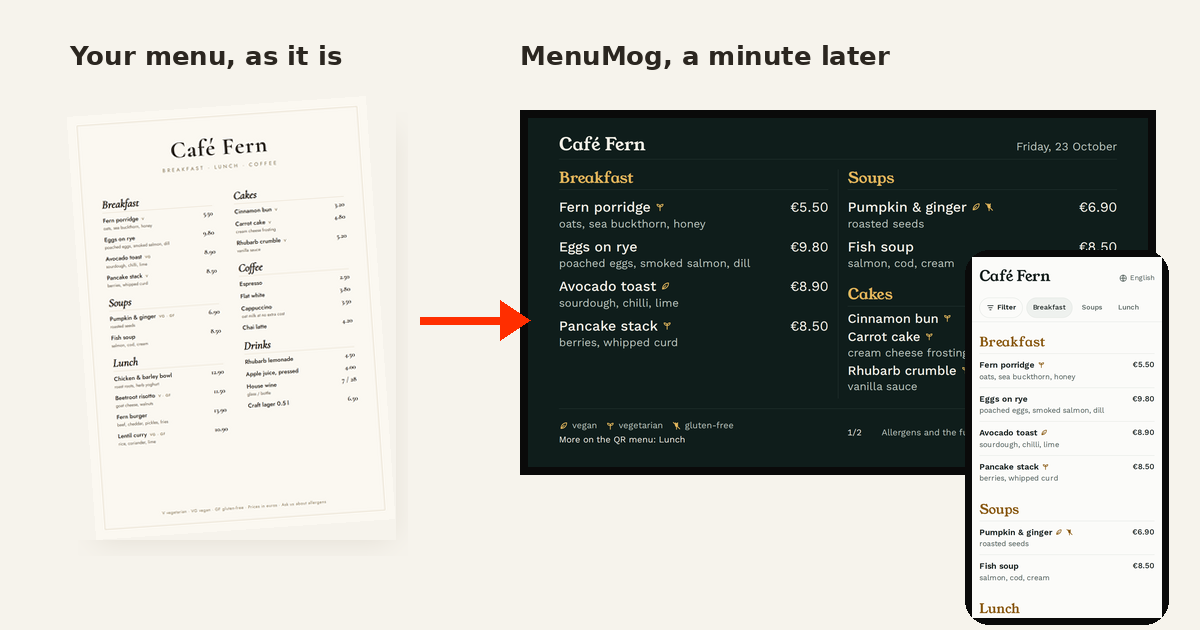
I make MenuMog. This post is about the first five minutes with any menu app, the part where most of them lose you, and what MenuMog now does instead: it reads the menu you already have.
The menu already exists
Every café and restaurant that looks at a digital menu already has a menu. It is on the counter, printed. It is a PDF on the owner's laptop, the file that went to the printer. It is on the website, or a photo of it is.
And then the menu app asks you to type it in again. Sections, dishes, descriptions, prices, the vegan marks, the wine with two prices. Eighty dishes is an evening. Most people open the editor, add three dishes, and never come back. Most of the menus started in MenuMog so far look exactly like that: a few placeholder dishes, never finished.
Typing a menu that already exists is not work anyone should do. So MenuMog does not ask for it anymore.
Give it what you have
When you make a new menu, MenuMog asks where your menu is now:
- Your website. Paste the address. MenuMog finds the menu page, follows the PDF menus and menu pictures it links to, and reads all of them. Your logo and colours come along.
- A PDF or photos. The printer's file, or photos of the printed menu, the chalkboard, the drinks card. Up to eight at once, and one menu comes out of all of them.
- Text. Copy it out of a Word file, an email or a delivery app, and paste.
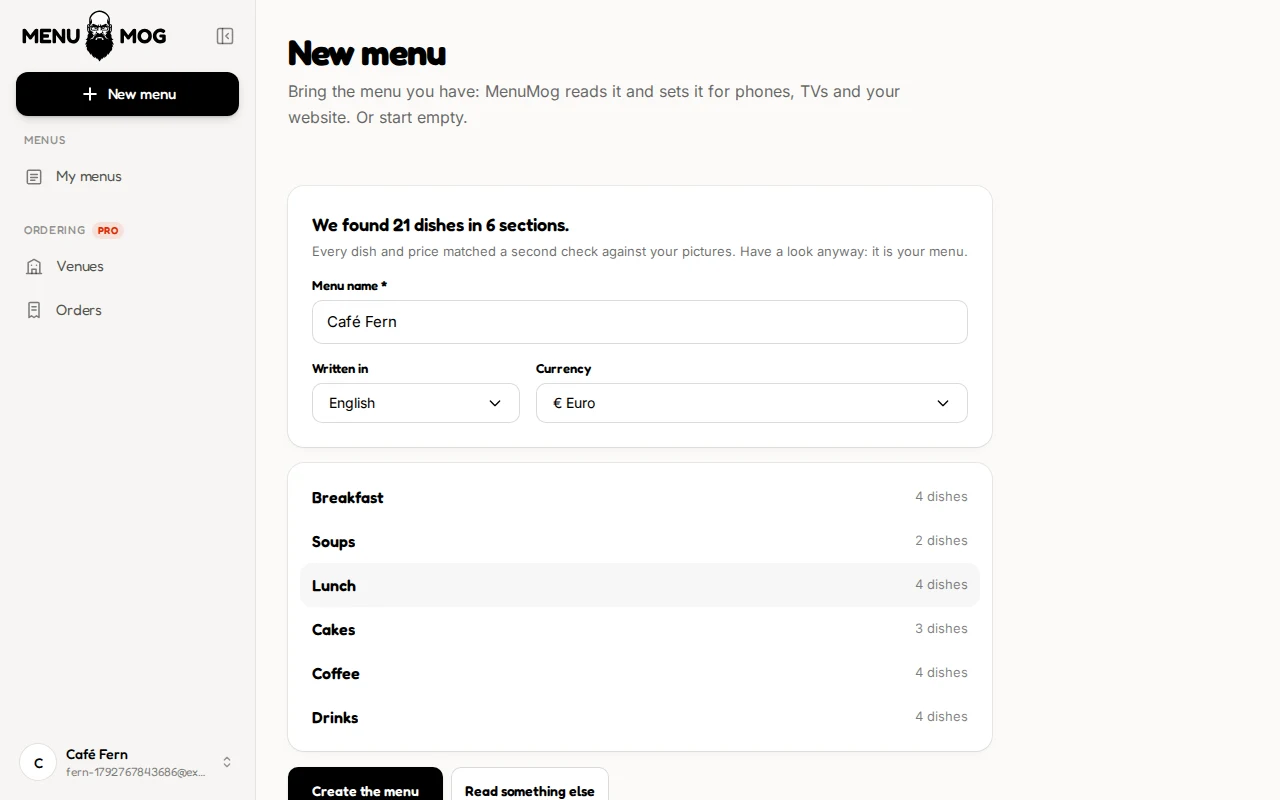
About a minute later you see the menu it found, section by section, before anything is saved.
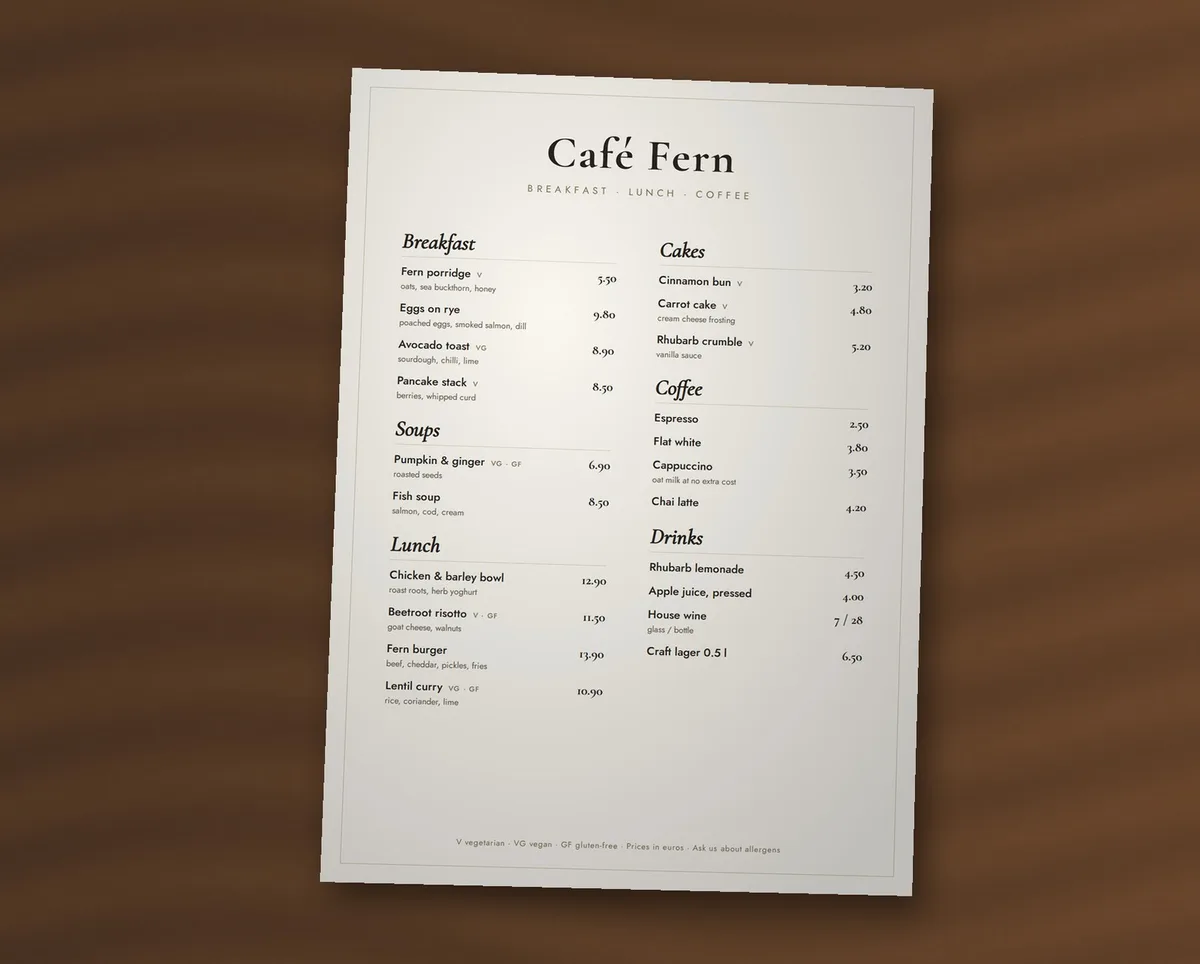
This is the photo I tested it with: a printed menu for a made-up café, on a table, taken with a phone the way an owner would take it. Twenty-one dishes in six sections, small type, a legend for the diet marks at the bottom, and a house wine with a glass price and a bottle price. MenuMog read it in about 30 seconds and got all 21 dishes and every price right, the wine's two prices included.
Fast is easy. Right is the point.
Reading a menu with AI is not new, and it is not hard to make it look good in a demo. What is hard is the one line it gets wrong. A menu with one wrong price is worse than no menu: the guest sees €8.50, the till says €9.80, and now the menu is the problem.
So most of the work in the import is not the reading. It is the checking:
- Every price is looked for in your menu. When MenuMog reads a website or text, it searches the original for each price it read, however it is written there: 8,50 or 8.50 or 8.-. A price it cannot find is marked for you.
- Pictures are read twice. A photo or a scanned PDF is read, then gone over a second time, line by line against the picture. If the second look reads a price differently, you are told what it saw.
- Nothing is guessed. A dish with no price stays without one. A name that is not in your menu is marked. Allergens and diet marks are taken only from what your menu itself marks, never guessed from the ingredients.
- You have the last word. Anything that needs a look is listed first, with the reason, so you check five lines and not eighty.
I tested this the unforgiving way. A real café website: 88 dishes out of 88, every price exact. A full restaurant menu from its pictures: 161 dishes in under three minutes. And a menu where I planted seven mistakes for the check to find: it caught all seven, and raised no false alarm on the rest.
Then it is a MenuMog menu
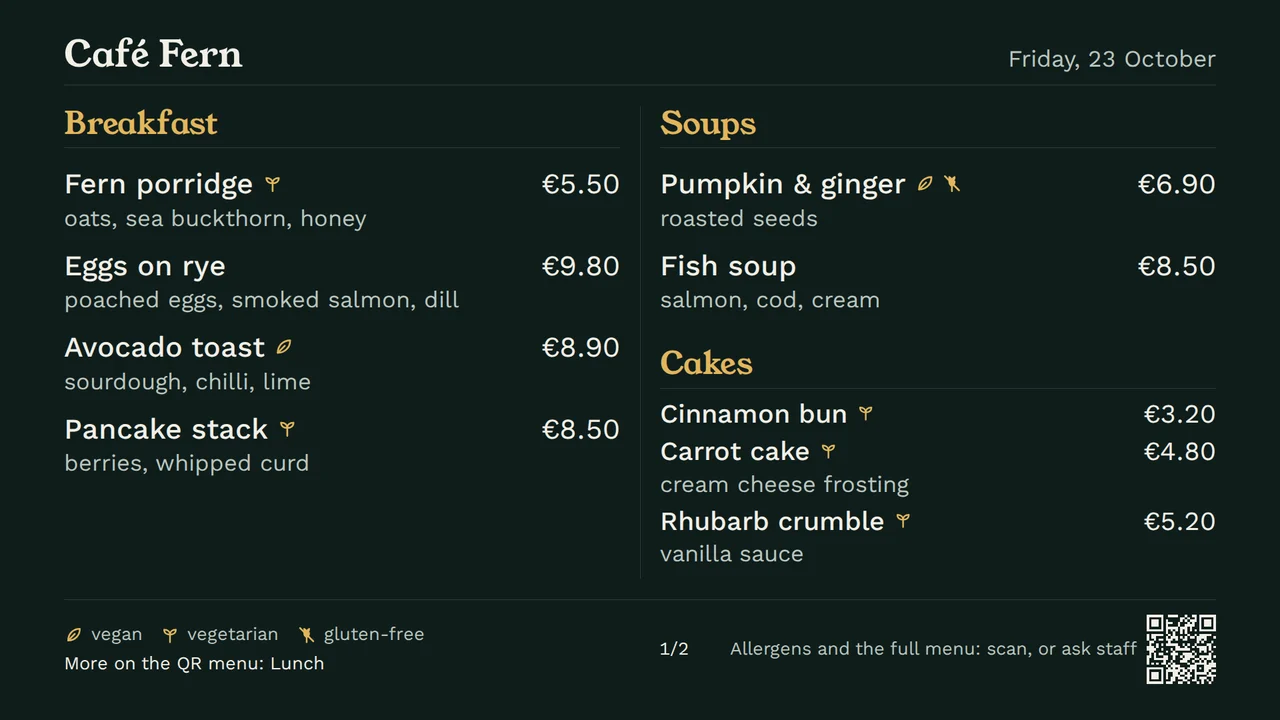
The import is only the door. What comes out is an ordinary MenuMog menu, so everything else works on it at once: the phone menu behind the QR code with its allergen filter, the board on the TV over the counter sized for the farthest seat, the week's lunch picture for Facebook and Instagram, and the menu on your own website.
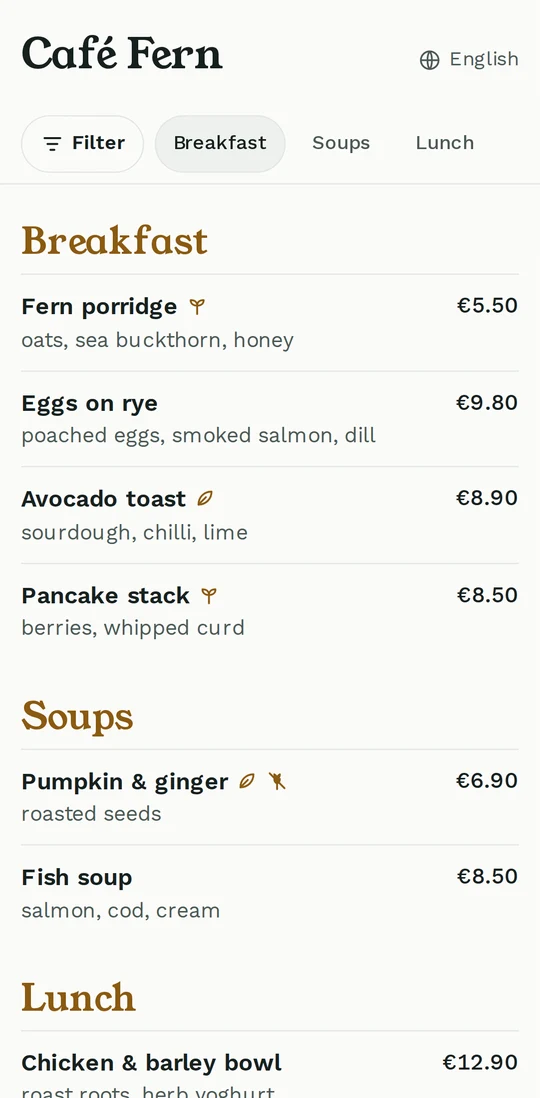
Here is the same café menu a minute after the photo. Nothing in it was typed or arranged by hand.
When the menu changes
Menus change: a new season, new prices, three new dishes on the printed card. MenuMog keeps up the same way it started. Open your menu in the editor, choose Update from a new version, and give it the new photo, PDF or website.
It shows you only what changed: the prices old and new, the new dishes, the dishes no longer on the menu. You tick what to apply, and the same menu is updated, so its QR code, TV link and website keep working, and its dish photos and specials stay. A dish that is gone is hidden, not deleted, and a section the new version does not have, say the drinks card you did not photograph, is left alone.
One thing it will not do is invent allergens. If your menu does not mark them, the import does not guess them from the ingredients; you add them in the editor.
Where your files go
To read your menu, MenuMog uses Google's Gemini on a paid plan, under which Google does not use what we send to train its models. Your files are read and then thrown away. Only the menu you create is kept.
Try it with your own menu
Take a photo of the menu on your counter, or paste your website's address. You can watch a real import from start to finish, and see the rest of what it does, on the menu import page.
Share this article
Ready to create your digital menu?
Join restaurants and cafes using MenuMog for QR menus, ordering, and more.
Get started free